 Sikshya Plus
Chapter at a glance
This chapter covers the basics of computer software and operating systems, including types of software, operating system functions, and concepts like multiprogramming and multitasking. It also explores GUI-based operating systems, open source operating systems, and device management. The chapter provides a comprehensive understanding of how operating systems manage computer hardware and software resources.
- Operating System
- Application Software
- Multiprogramming
- Multitasking
- GUI Operating System
- Open Source Operating System
- Device Management
- File Management
Exam focus: Students should focus on understanding the functions of an operating system, differences between multiprogramming and multitasking, and the characteristics of GUI-based and open source operating systems for exams.
Key formulas and definitions
- Process Management
- Memory Management
- File System Hierarchy
- Device Driver
- Virtual Memory
On this page (21 sections)
- Table of Contents
- Major Functions of an Operating System
- Types of Application Software
- How Multiprogramming Works
- Advantages of Multiprogramming
- Disadvantages of Multiprogramming
- Types of Multiprocessing
- Advantages of Multiprocessing
- Disadvantages of Multiprocessing
- Key Features of GUI-Based Operating System
- Characteristics of Open Source OS
- Prominent Open Source Operating Systems
- Primary Objectives of an Operating System
- Four Major Functions of an Operating System (Detailed)
- Understanding GUI and CUI
- Why GUI Operating Systems Are More Popular Than CUI
- Activity 1: Prepare a Presentation on 'Function of Operating System'
- Activity 2: Report on Mobile Operating Systems
- Activity 3: Virtual Machine – Install Multiple Operating Systems
- Activity 4: Prepare a Presentation on 'Linux Distros'
- Activity 5: Prepare a Chart on 'Operating System Terminology'
Solutions and answers
Chapter Solutions & Comprehensive Study Guide — Innovative Computer Science, Grade XI (CDC Approved)
Table of Contents
In simpler terms, without an operating system, a computer is just a collection of electronic components that cannot perform useful work. The OS breathes life into the hardware by coordinating all activities — from booting up to shutting down.
Major Functions of an Operating System
-
Process Management
The OS handles the creation, scheduling, and termination of processes. It decides which process gets the CPU and for how long (CPU scheduling). It also handles inter-process communication and synchronization, ensuring that multiple programs can coexist efficiently.
-
Memory Management
The OS allocates and deallocates primary memory (RAM) to processes as needed. It tracks which parts of memory are in use and by whom, manages virtual memory, and uses techniques like paging and segmentation to optimize memory usage. When memory is full, it may swap data to disk.
-
File Management
The OS manages files stored on secondary storage devices (HDD, SSD, etc.). It handles the creation, deletion, reading, writing, and organization of files and directories. It maintains file systems (like NTFS, ext4, FAT32) that define how data is stored and retrieved.
-
Device Management (I/O Management)
The OS manages all input and output devices (keyboard, mouse, monitor, printer, etc.) through device drivers. It uses techniques like buffering, caching, and spooling to optimize I/O operations and provides a uniform interface for device communication.
-
Security and Access Control
The OS protects data and resources from unauthorized access. It implements user authentication (passwords, biometrics), file permissions, encryption, and firewalls to ensure the integrity and confidentiality of the system.
-
User Interface Provision
The OS provides a way for users to interact with the computer. This can be a Command-Line Interface (CLI) (text-based commands) or a Graphical User Interface (GUI) (windows, icons, menus, pointer).
Types of Application Software
1. Packaged / Off-the-Shelf Software
These are ready-made software products developed for mass distribution to meet the general needs of a broad user base. They are commercially available and can be purchased or subscribed to.
- Examples: Microsoft Office Suite (Word, Excel, PowerPoint), Adobe Photoshop, Tally, QuickBooks.
- Advantages: Widely tested, well-documented, readily available, and cost-effective for general use.
- Limitations: May not perfectly fit specific/unique business requirements.
2. Custom / Tailored Software
This type is specifically designed and developed for a particular organization, individual, or purpose. It is built from scratch according to the client's exact requirements.
- Examples: A hospital management system built for a specific hospital, a school's ERP system, a bank's core banking application.
- Advantages: Perfectly aligned with user needs, high flexibility, competitive advantage.
- Limitations: Expensive, time-consuming to develop, and requires ongoing maintenance.
3. Web-Based Software
Application software that runs on a web browser over the internet without needing to be installed locally on the user's computer. It is hosted on remote servers (cloud).
- Examples: Gmail, Google Docs, Google Sheets, Canva, Salesforce, Trello.
- Advantages: Accessible from anywhere with internet, automatic updates, no installation needed.
- Limitations: Requires internet connectivity, potential security/privacy concerns.
4. Mobile Application Software (Mobile Apps)
Software applications specifically designed to run on mobile devices like smartphones and tablets. They are typically downloaded from app stores.
- Examples: WhatsApp, Instagram, TikTok, Google Maps, Duolingo.
- Advantages: Optimized for touch interfaces, use device features (camera, GPS), portable.
- Limitations: Platform-specific (Android/iOS), limited processing power compared to desktops.
5. Open Source Software
Software whose source code is publicly available and can be freely used, modified, and distributed by anyone. A community of developers typically contributes to its development.
- Examples: LibreOffice, GIMP, VLC Media Player, Mozilla Firefox.
- Advantages: Free to use, highly customizable, community-driven innovation, transparent.
Mobile Application (Mobile App)
- A mobile app is a software application built specifically for mobile devices (smartphones, tablets).
- It must be downloaded and installed from an app store (Google Play Store, Apple App Store).
- Runs natively on the device's operating system (Android, iOS).
- Can work offline (many features function without internet).
- Has direct access to device hardware: camera, GPS, accelerometer, contacts, microphone, etc.
- Generally offers better performance and smoother user experience on the target device.
- Requires regular updates through the app store, consuming storage space.
- Platform-dependent: separate versions needed for Android and iOS.
- Examples: WhatsApp, Instagram, TikTok, Google Maps.
Web-Based Software
- Web-based software is an application that runs inside a web browser (Chrome, Firefox, Safari).
- It does not require installation; accessed via a URL/web address.
- Runs on remote servers (cloud), and the browser renders the interface.
- Requires an active internet connection to function (some offer limited offline via PWA).
- Has limited access to device hardware compared to native apps.
- Performance depends on internet speed and browser capability.
- Automatic updates on the server side; no storage space needed on the device.
- Platform-independent: works on any device with a modern web browser.
- Examples: Gmail, Google Docs, Canva, Trello, Salesforce.
Multiprogramming
- Focuses on maximizing CPU utilization by loading multiple programs into memory simultaneously.
- When the running program waits for I/O, the CPU switches to another program already in memory.
- The CPU executes one program at a time; the switch happens during I/O wait, not time-based.
- The primary goal is to reduce CPU idle time.
- Context switching occurs only when the current process cannot proceed (e.g., waiting for disk I/O).
- More of a system-level concept; the user may not even notice it.
- Programs share the CPU based on I/O events, not time slices.
Multitasking
- Focuses on providing quick response time to multiple tasks/users by rapidly switching between them.
- The CPU switches between tasks using time slices (quantum), regardless of I/O status.
- The CPU appears to execute multiple tasks simultaneously through rapid time-sharing.
- The primary goal is to provide interactive responsiveness to each task.
- Context switching occurs at regular time intervals (preemptive scheduling).
- More of a user-level concept; users directly interact with multiple applications.
- Tasks share the CPU based on time quantum, not just I/O events.
How Multiprogramming Works
Advantages of Multiprogramming
- Maximized CPU Utilization: The CPU is almost never idle because as soon as one program waits for I/O, another program takes over. This dramatically increases overall system throughput.
- Increased Throughput: More programs complete execution in a given time period since the CPU is constantly working on something productive.
- Better Resource Utilization: All system resources (CPU, memory, I/O devices) are utilized more efficiently, reducing waste.
- Reduced Response Time (for batch processing): In environments like batch processing, jobs flow through the system more quickly because there's no idle waiting.
- Efficient I/O Overlap: While one program's I/O is being processed, the CPU computes for another program, effectively overlapping computation and I/O.
Disadvantages of Multiprogramming
- Complex Scheduling: The OS needs sophisticated scheduling algorithms to decide which program should get the CPU next, adding computational overhead.
- Memory Management Overhead: Managing multiple programs in memory simultaneously requires advanced memory management techniques (partitioning, paging, segmentation), which adds complexity.
- Risk of Starvation: If CPU-bound programs dominate, I/O-bound programs may have to wait for very long periods, leading to starvation.
- Memory Limitations: Physical memory must be large enough to hold multiple programs simultaneously, or the system must use virtual memory, which can be slower.
- No Direct User Interaction: In pure multiprogramming (batch mode), there is no direct user interaction with programs while they execute. The user submits jobs and waits for results.
- Increased Complexity: The operating system itself becomes much more complex to design, implement, and maintain.
Types of Multiprocessing
-
Symmetric Multiprocessing (SMP)
All processors are equal and share the same memory and I/O. Each processor can execute any task, including OS functions. This is the most common type in modern computers. Example: Modern multi-core processors (Intel Core i7, AMD Ryzen).
-
Asymmetric Multiprocessing (AMP)
Processors are not equal — there is a master processor that controls the system and assigns tasks to slave processors. The master handles OS functions, while slaves execute user programs. Less common today.
Advantages of Multiprocessing
- True Parallelism: Multiple processors can execute different tasks simultaneously, providing genuine parallel processing capability, which is significantly faster than time-sharing on a single CPU.
- Increased Throughput: The overall number of tasks completed per unit time increases proportionally (ideally) with the number of processors.
- Improved Reliability and Fault Tolerance: If one processor fails, the other processors can take over its work. This makes the system more reliable and fault-tolerant — a concept known as graceful degradation.
- Better Performance for Computation-Intensive Tasks: Tasks like video rendering, scientific simulations, large-scale data processing, and AI training benefit enormously from multiple processors.
- Scalability: More processors can be added to the system (up to hardware limits) to increase computing power without changing the fundamental architecture.
Disadvantages of Multiprocessing
- Higher Cost: Multiple processors and the associated infrastructure (motherboard, cooling, power supply) make the system significantly more expensive.
- Complex OS Design: The operating system must handle synchronization, resource sharing, load balancing, and conflict resolution among processors, making it much more complex.
- Communication Overhead: Processors need to communicate with each other and share resources, which introduces latency and coordination overhead (bus contention, cache coherence issues).
- Diminishing Returns: Not all tasks can be parallelized. Due to Amdahl's Law, adding more processors yields diminishing speedup because some portions of a program must run sequentially.
- Hardware Complexity: Designing hardware with multiple processors that efficiently share memory and I/O is engineering-intensive.
Key Features of GUI-Based Operating System
-
Visual Interface with Windows
Applications run in rectangular windows that can be moved, resized, minimized, maximized, and closed. Multiple windows can be open simultaneously, enabling easy switching between tasks.
-
Icons and Desktop
Files, folders, applications, and system tools are represented by small graphical icons on a desktop. Users can double-click icons to open them, making navigation intuitive and visually organized.
-
Point-and-Click Interaction
Users interact using a mouse (or trackpad/touch) to point, click, drag, and drop items. This eliminates the need to memorize commands and reduces the learning curve dramatically.
-
Menus and Toolbars
Functions and commands are organized in drop-down menus, context menus (right-click), and toolbars. Users can discover and access features without knowing specific command syntax.
-
Multi-Window Multitasking
Users can work on multiple applications simultaneously, each in its own window. Task switching is as simple as clicking on the desired window or using keyboard shortcuts (Alt+Tab).
-
Drag and Drop
Files and objects can be moved, copied, or manipulated by simply dragging them from one location to another, providing a natural and intuitive interaction model.
-
WYSIWYG (What You See Is What You Get)
The display closely represents the final output, whether it's a document, image, or presentation. Users can see formatting, colors, and layout in real-time.
-
Accessibility Features
GUI OS includes accessibility options like screen magnifiers, high-contrast themes, on-screen keyboards, voice narration, and customizable font sizes for users with disabilities.
-
Rich Multimedia Support
GUI OS natively supports multimedia — images, audio, video, animations, and graphical themes — enhancing the overall user experience.
Characteristics of Open Source OS
- Free to Use: Open source OS can be downloaded, installed, and used without any licensing cost. This makes it especially attractive for individuals, educational institutions, and developing countries.
- Source Code Availability: The complete source code is accessible to everyone. Anyone can study how the OS works at the deepest level, which promotes learning and transparency.
- Freedom to Modify: Developers and organizations can customize the OS to suit their specific needs. This has led to hundreds of distributions (distros) of Linux, each tailored for different purposes.
- Community-Driven Development: Thousands of developers worldwide contribute to the development, bug-fixing, and improvement of the OS. This peer review process often leads to robust, secure, and well-tested software.
- Redistribution Rights: Users can freely share and distribute copies of the OS, including their modified versions, to others.
- High Security: Because the code is open for inspection, security vulnerabilities are often discovered and fixed quickly by the community. The "many eyes" approach reduces the chance of hidden backdoors or vulnerabilities.
Prominent Open Source Operating Systems
-
Linux — The most well-known open source OS. Linux is a kernel created by Linus Torvalds in 1991. Various distributions (distros) are built around this kernel:
- Ubuntu — User-friendly, great for beginners
- Fedora — Cutting-edge features, sponsored by Red Hat
- Debian — Known for stability, base for many distros
- Linux Mint — Beginner-friendly, Windows-like interface
- Kali Linux — Specialized for cybersecurity/penetration testing
- CentOS/RHEL — Enterprise-focused server distributions
- Android — The most widely used mobile operating system globally, built on the Linux kernel. Developed by Google and the Open Handset Alliance.
- FreeBSD — A free, open source Unix-like operating system known for its advanced networking, security features, and performance.
- Chrome OS — Google's lightweight OS for Chromebooks, based on the Linux kernel and the open source Chromium project.
Primary Objectives of an Operating System
The operating system is designed with several fundamental objectives in mind, all aimed at making the computer system functional, efficient, and user-friendly:
-
Convenience
One of the primary objectives of an OS is to make the computer system convenient to use. Without an OS, users would need to write low-level machine code to interact with hardware. The OS provides user-friendly interfaces (CLI or GUI) and abstractions that hide the complexity of hardware operations, allowing even non-technical users to use computers effectively.
-
Efficiency
The OS aims to use all hardware resources — CPU, memory, disk, network — as efficiently as possible. Through techniques like scheduling, memory management, and I/O buffering, the OS minimizes waste and ensures that no resource sits idle unnecessarily. Maximizing throughput and minimizing response time are central efficiency goals.
-
Security and Protection
The OS must protect data, programs, and hardware from unauthorized access, malicious attacks, and accidental damage. This includes user authentication, access control, file permissions, encryption, and isolation of processes from each other so that one faulty program cannot corrupt another or crash the entire system.
-
Resource Management and Sharing
Multiple programs and users often need to share the same resources (CPU, memory, printers, files). The OS manages this sharing fairly and efficiently, resolving conflicts and preventing deadlock situations where processes get stuck waiting for each other indefinitely.
-
Extensibility and Reliability
The OS should be designed so that it can be easily updated, extended, and repaired. It should also provide a stable and reliable computing environment, gracefully handling errors and preventing system crashes.
Four Major Functions of an Operating System (Detailed)
A process is a program in execution. The OS is responsible for managing all processes in the system. This involves:
- Process Creation and Termination: The OS creates new processes when programs are launched and terminates them when they finish or are killed.
- Process Scheduling: Since there are usually more processes than CPUs, the OS uses scheduling algorithms (FCFS, SJF, Round Robin, Priority Scheduling) to determine the order and duration each process gets on the CPU.
- Process Synchronization: When processes share resources, the OS ensures they don't interfere with each other using mechanisms like semaphores, mutexes, and monitors.
- Process Communication: The OS facilitates inter-process communication (IPC) through shared memory, message passing, pipes, and sockets.
- Deadlock Handling: The OS detects, prevents, or recovers from deadlocks — situations where processes are permanently blocked waiting for each other.
Memory (RAM) is a critical resource. The OS manages it carefully to ensure all processes get the memory they need:
- Memory Allocation: The OS allocates portions of memory to processes when they need it and deallocates when they're done.
- Tracking: It keeps track of which memory locations are being used and by which process.
- Virtual Memory: When physical RAM is insufficient, the OS uses disk space as an extension of RAM (virtual memory), allowing programs larger than physical memory to run.
- Paging and Segmentation: These are techniques the OS uses to manage memory efficiently, breaking it into manageable blocks (pages) or logical segments.
- Memory Protection: Ensures one process cannot access or corrupt the memory space of another process.
The OS provides a structured way to store, organize, and retrieve data on storage devices:
- File Creation, Deletion, and Manipulation: The OS handles creating new files, deleting existing ones, and reading/writing data.
- Directory Structure: The OS organizes files into a hierarchical directory (folder) structure, making it easy to locate and manage files.
- File Systems: The OS uses file systems (NTFS, ext4, FAT32, APFS) that define how data is stored, indexed, and retrieved on disk.
- Access Control: The OS determines who can access which files, implementing permissions like read, write, and execute for different users.
- Backup and Recovery: Some OS provide built-in backup mechanisms and file recovery features.
The OS manages all input/output devices through a combination of device drivers and I/O subsystems:
- Device Drivers: These are special programs that act as translators between the OS and hardware devices. Each device (printer, keyboard, monitor) has its own driver.
- I/O Scheduling: The OS schedules I/O requests to optimize device usage and minimize waiting time.
- Buffering: Temporary memory areas (buffers) hold data during transfer between devices and programs, smoothing out speed differences.
- Caching: Frequently accessed data is stored in fast cache memory for quick retrieval.
- Spooling: For devices like printers, the OS uses spooling (Simultaneous Peripheral Operations On-Line) to queue jobs and send them to the device in order.
Understanding GUI and CUI
GUI (Graphical User Interface)
- Uses visual elements: windows, icons, buttons, menus, and a mouse pointer.
- Users interact by pointing, clicking, dragging.
- Examples: Windows 10/11, macOS, Ubuntu GNOME, Android.
CUI (Character User Interface)
- Uses text-based commands typed by the user.
- Users interact by typing commands at a prompt.
- Examples: MS-DOS, Windows Command Prompt, Linux Terminal.
Why GUI Operating Systems Are More Popular Than CUI
-
Intuitive and Easy to Learn
GUI presents information visually, making it immediately understandable. A new user can start using a GUI OS within minutes without any formal training. In contrast, CUI requires users to memorize specific commands and their correct syntax, which has a steep learning curve. For example, deleting a file in CUI requires typing
del filename.txt, while in GUI, it's as simple as selecting the file and pressing Delete or dragging it to the Recycle Bin. -
No Need to Memorize Commands
In CUI, every action requires remembering the exact command and its parameters. If you forget a command or make a typo, the system won't understand you. In GUI, all available options are visible on screen as buttons, menu items, and icons. Users can discover features by exploring menus rather than reading documentation.
-
Multitasking with Ease
GUI allows users to run multiple applications simultaneously in separate windows. Users can view and interact with several programs at once, easily switching between them by clicking on windows. In CUI, working with multiple programs is cumbersome — typically only one command/task is visible at a time on a single screen.
-
Visual Feedback and WYSIWYG
GUI provides immediate visual feedback for every action. When you click a button, it visibly responds. File sizes, progress bars, error dialogs, and preview thumbnails all help users understand the system state. CUI provides only text-based feedback, which can be cryptic and harder to interpret for non-technical users.
-
Support for Multimedia
GUI OS can natively display images, play videos, render graphics, and handle animations. This is essential in today's computing environment where users work with photos, videos, presentations, and graphical design. CUI is fundamentally text-based and cannot display multimedia content.
-
Accessibility for All Users
GUI makes computers accessible to a much broader audience — children, elderly users, people with disabilities, and non-technical professionals. Features like large icons, touch-friendly buttons, voice commands, and screen readers integrate naturally with GUI. CUI is primarily suited for technically skilled users like programmers and system administrators.
-
Touch and Gesture Support
Modern GUI OS supports touchscreens, gesture controls (swipe, pinch-to-zoom, long press), and stylus input. This is critical for tablets, smartphones, and 2-in-1 devices. CUI has no concept of touch or gesture interaction.
-
Rich File Management
GUI provides powerful file management through visual file explorers where users can browse directories, preview files, sort by name/date/size, and drag-and-drop files between folders. In CUI, file management requires memorizing commands like
dir,cd,copy,mkdir, etc.
Despite GUI's popularity, CUI (command line) is still preferred in certain scenarios:
- Server Administration: Most servers run headless (without monitors) and are managed via command line or SSH.
- Automation and Scripting: Complex tasks can be automated efficiently through shell scripts.
- Resource Efficiency: CUI consumes far less memory and CPU than GUI, making it ideal for older or resource-constrained hardware.
- Precision and Speed for Experts: Experienced users can execute tasks faster by typing commands than by navigating through menus.
- Software Development: Many development tools (compilers, version control) are command-line based.
GUI operating systems are overwhelmingly more popular than CUI operating systems because they are visually intuitive, easy to learn, support multitasking with ease, provide rich multimedia experiences, and are accessible to users of all skill levels. While CUI remains valuable for specialized tasks requiring precision and automation, the vast majority of modern users — from students to professionals — prefer and benefit from GUI-based systems. This is why Windows, macOS, Android, and iOS dominate the consumer and enterprise markets today.
Activity 1: Prepare a Presentation on 'Function of Operating System'
Create a comprehensive presentation (using PowerPoint, Google Slides, or Canva) covering all major functions of an operating system. Include sections on:
- Process Management — with diagrams showing process states (Ready, Running, Waiting, Terminated)
- Memory Management — explain paging, segmentation, and virtual memory with visual diagrams
- File Management — show directory tree structures and file system hierarchy
- Device Management — illustrate the role of device drivers and I/O subsystem
- Security Management — explain authentication, authorization, and access control
- Add real-world examples and screenshots from Windows/Linux for each function
Activity 2: Report on Mobile Operating Systems
Research and prepare a detailed report on mobile operating systems. Visit official websites and tech portals to gather information about:
- Android (Google) — history, versions (Cupcake to latest), market share, architecture
- iOS (Apple) — history, features, ecosystem integration, security model
- HarmonyOS (Huawei) — emerging OS, IoT integration
- KaiOS — lightweight OS for feature phones
- Compare features, market share, security, app ecosystems, and hardware support
- Include charts, statistics, and references from reliable sources
Activity 3: Virtual Machine – Install Multiple Operating Systems
This hands-on activity teaches you how to run multiple operating systems on a single physical computer using virtualization technology.
- Step 1: Visit virtualbox.org and download Oracle VirtualBox (free virtualization software)
- Step 2: Install VirtualBox on your computer following the setup wizard
- Step 3: Download ISO images of different operating systems:
- Ubuntu Linux — ubuntu.com
- Windows 10/11 — microsoft.com
- Any other OS of your choice (Fedora, Linux Mint, etc.)
- Step 4: Create virtual machines in VirtualBox, allocate RAM and disk space, and install each OS
- Step 5: Boot into each virtual machine and explore the interface, terminal, and built-in tools
- Step 6: Document your experience with screenshots, noting differences in UI, features, and performance
Activity 4: Prepare a Presentation on 'Linux Distros'
Research and create a presentation covering major Linux distributions (distros). Include:
- What is a Linux Distro? — Explain the concept of Linux kernel + GNU tools + package manager + desktop environment
- Popular Distros and Their Target Users:
- Ubuntu — Most beginner-friendly, large community, Debian-based
- Fedora — Cutting-edge, Red Hat sponsored, great for developers
- Debian — Rock-solid stability, base for Ubuntu and many others
- Linux Mint — Windows-like interface, ideal for Windows migrants
- Arch Linux — For advanced users, rolling release, DIY philosophy
- Kali Linux — Security/penetration testing focused
- Raspberry Pi OS — Lightweight, for Raspberry Pi boards
- CentOS/RHEL — Enterprise server environments
- Show a Linux family tree diagram illustrating how distros are derived from each other
- Include desktop environment screenshots (GNOME, KDE Plasma, XFCE, Cinnamon)
Activity 5: Prepare a Chart on 'Operating System Terminology'
Create a visually appealing reference chart (poster or digital infographic) covering key OS terminology:
- Kernel — The core component of the OS that manages hardware directly
- Shell — The interface layer that accepts user commands and passes them to the kernel
- Process — A program in execution; an instance of a running program
- Thread — The smallest unit of execution within a process
- Deadlock — A state where processes are stuck waiting for each other indefinitely
- Context Switching — The process of saving and restoring process state when switching CPU focus
- Paging — Memory management technique that divides memory into fixed-size blocks (pages)
- Virtual Memory — Using disk space as an extension of RAM
- Device Driver — Software that allows the OS to communicate with hardware
- Boot Process — The sequence of events from power-on to OS loading (BIOS/UEFI → POST → Bootloader → Kernel → Init)
- BIOS/UEFI — Firmware that initializes hardware and starts the boot process
- Firmware — Permanent software programmed into hardware devices
- Use color coding, icons, and clear typography to make the chart study-friendly
Frequently asked questions
What is Computer Software and Operating System about?
This chapter covers the basics of computer software and operating systems, including types of software, operating system functions, and concepts like multiprogramming and multitasking. It also explores GUI-based operating systems, open source operating systems, and device management. The chapter provides a comprehensive understanding of how operating systems manage computer hardware and software resources.
Which topics are covered in Computer Software and Operating System?
Class 11 Computer Science “Computer Software and Operating System” covers: Operating System; Application Software; Multiprogramming; Multitasking; GUI Operating System; Open Source Operating System; Device Management; File Management.
What should I focus on in Computer Software and Operating System for the exam?
Students should focus on understanding the functions of an operating system, differences between multiprogramming and multitasking, and the characteristics of GUI-based and open source operating systems for exams.
What are the key formulas or definitions in Computer Software and Operating System?
Process Management; Memory Management; File System Hierarchy; Device Driver; Virtual Memory.
Where can I read the Class 11 Computer Science “Computer Software and Operating System” solutions?
Right on this page. They are free and you do not need to sign up. For chapter quizzes and the AI tutor, install the Sikshya Plus app.
Study tips
Do not just read it. Practice it.
You have read the solutions for Computer Software and Operating System. Now test yourself, ask the AI tutor and keep your streak going.

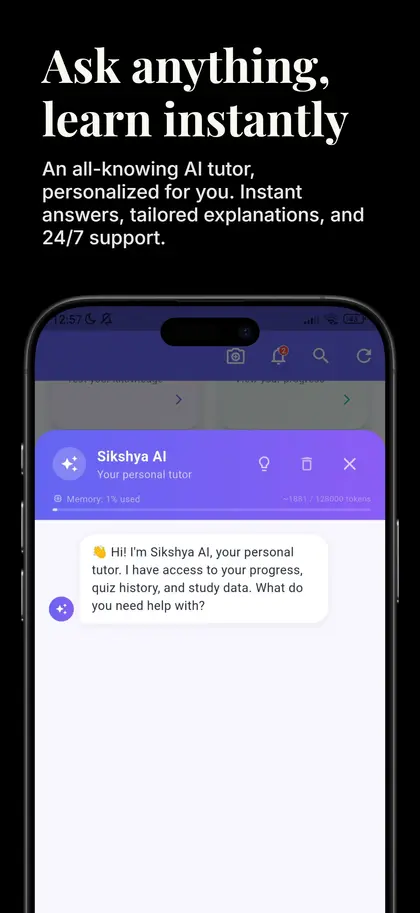
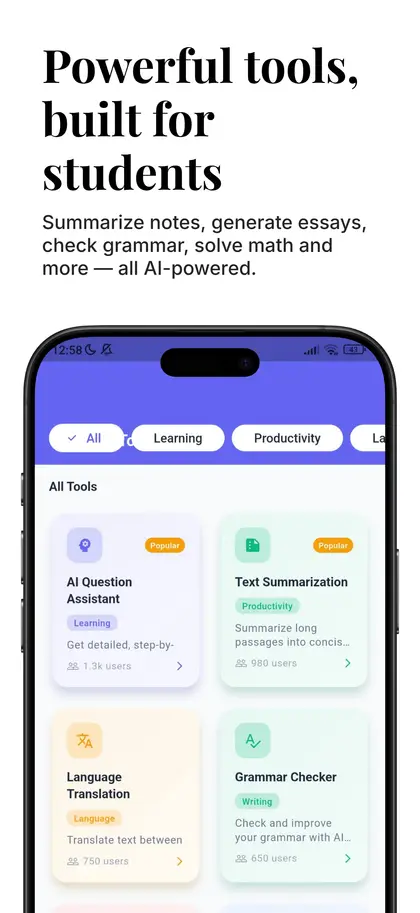

- AI quizzes for this chapterTest yourself with instant feedback and explanations after every answer.
- AI tutor, free, 24/7Stuck on a question? Ask in your own words and get a step-by-step explanation.
- 14 AI tools in one appSummarizer, grammar checker, flashcards, essay help, math solver and more.
- Past questions and notesPast papers and your own notes organized chapter by chapter.