 Sikshya Plus
Chapter at a glance
This chapter covers the basics of computer systems, including the definition of a computer, generations of computers, and the differences between various types of computers and memory. It also explains how data is processed by a microprocessor and the importance of cache memory. The chapter provides an overview of primary and secondary memory, system buses, and input/output devices.
- Computer System
- Generations of Computers
- Primary Memory
- Secondary Memory
- Cache Memory
- System Bus
- Input/Output Devices
Exam focus: Students should focus on understanding the basic components of a computer system, the differences between primary and secondary memory, and the role of cache memory in improving system performance.
Key formulas and definitions
- GIGO (Garbage In, Garbage Out)
- IPO Cycle (Input, Process, Output)
On this page (45 sections)
- Exercise Solutions — Complete Guide
- Exercise 1 — Multiple Choice QuestionsCorrect answers with detailed explanations for every option
- Exercise 2 — Short Question AnswersConcise yet thorough explanations for each concept
- Define a computer. Why is computer known as a versatile and diligent device?
- What are the application areas of computers? Explain in brief.
- Why was the size of the computer reduced in the third generation of computers?
- Explain the technology used in different generations of computers.
- Differentiate between second and third generation computer.
- What are the different generations of computers? Compare the third and fourth generation of computers.
- Differentiate between analog and digital computers.
- Differentiate between Mini and Mainframe computers.
- What is a super computer? Explain its application in a real life situation.
- What is mobile computing? Explain the importance of mobile computing in communication.
- What is mobile computing? Explain why it is becoming more popular these days.
- Write any five differences between computer organization and computer architecture.
- What is a processing unit? Explain its different components.
- What is a primary memory? List its functions.
- How is data processed by a microprocessor? Explain with diagram.
- What is a system bus? Write the uses of different types of buses.
- What is computer memory? Write the differences between SRAM and DRAM.
- What is cache memory? List its advantages and disadvantages.
- What is a secondary memory? Why does a computer need secondary storage? Explain.
- What are the differences between HDD and SSD?
- What is a printer? Write the differences between impact and non-impact printers.
- What is an output? Differentiate between a CRT monitor and a LCD monitor.
- Write short notes on: i. Analog Computer · ii. Digital Computer · iii. Microcomputer · iv. Mainframe Computer · v. Supercomputer · vi. Versatility · vii. Bar Code Reader · viii. Scanner
- Exercise 3 — Long Question AnswersIn-depth, descriptive answers with comprehensive analysis
- Explain the features of the computer.
- Describe the applications of computers in different sectors.
- Explain the advantages and disadvantages of computers.
- Classify the computers in different generations and explain them shortly.
- Classify the digital computers and explain them.
- What is mobile computing? Describe its applications.
- What is a microprocessor? Explain the components of microprocessor.
- What is computer memory? Explain primary and secondary memories.
- What is a computer system? Explain the components of the computer system.
- What is computer architecture and computer organization? Describe the different units of computer system.
- Define computer architecture. Draw a block diagram of the computer system along with logical connections. Explain each block in detail.
- Explain the role of memory in a computer and differentiate between main memory and auxiliary storage.
- Exercise 4 — Full FormsComplete expansions of all abbreviations
- Activities — Research & Practical TasksGuidance and key points for each activity
- Visit different areas and observe how the computers are used in those areas. Prepare a report.
- Prepare a presentation on 'Components of Microprocessor' and demonstrate in your class.
- Prepare a chart to present information about 'Computer Memory.'
- Prepare a presentation on 'Generation of Computer.'
Solutions and answers
Exercise Solutions — Complete Guide
Comprehensive solutions to every question from the Grade 11 Computer Science textbook (CDC Nepal). Covers MCQs, short answers, long answers, full forms, and activities with in-depth explanations.
Exercise 1 — Multiple Choice QuestionsCorrect answers with detailed explanations for every option
Exercise 2 — Short Question AnswersConcise yet thorough explanations for each concept
Define a computer. Why is computer known as a versatile and diligent device?
A computer is an electronic device that accepts raw data (input), processes it according to a set of instructions (program), and produces meaningful information (output). It can also store data for future use. The word "computer" is derived from the Latin word "computare", meaning to calculate.
Why is a Computer Called a Versatile Device?
Versatility means the ability to perform a wide variety of tasks. A computer is called versatile because:
- A single computer can be used for diverse tasks — typing documents, playing games, designing graphics, browsing the internet, performing scientific calculations, editing videos, managing databases, and more.
- It can switch from one task to another quickly and seamlessly — e.g., from accounting to playing music to sending email.
- By simply changing the software/program, the same computer hardware can perform completely different functions. A doctor uses it for diagnosis, an engineer for design, a student for learning, and a banker for transactions — all using the same machine.
- It can work in virtually every field — education, healthcare, entertainment, science, business, defense, agriculture, and more.
Why is a Computer Called a Diligent Device?
Diligence means the quality of being careful and persistent in work. A computer is called diligent because:
- It can work continuously for hours, days, or even months without getting tired, bored, or losing concentration.
- Unlike humans, a computer does not suffer from fatigue, lack of attention, or emotional disturbance.
- It produces the same accurate result every time for the same input — the 1st calculation and the 10,000th calculation are performed with identical precision.
- It can perform millions or billions of operations per second without any error (provided the input data is correct — GIGO principle).
- It never loses patience, regardless of the volume or complexity of the task.
What are the application areas of computers? Explain in brief.
Computers are used in virtually every sector of modern life. The major application areas are:
- Education: E-learning platforms, online classes, digital libraries, educational software, smart classrooms, research, virtual labs, and distance learning programs. Computers have made education more accessible and interactive.
- Business & Commerce: Accounting, inventory management, payroll processing, e-commerce (online shopping), digital marketing, customer relationship management (CRM), and enterprise resource planning (ERP).
- Healthcare & Medicine: Patient record management, diagnostic imaging (CT, MRI), telemedicine, robotic surgery, drug research, hospital management systems, and health monitoring devices.
- Banking & Finance: Online banking, ATM transactions, electronic fund transfers, stock market trading, fraud detection, insurance processing, and mobile payments.
- Science & Research: Scientific simulations, data analysis, weather forecasting, space exploration, molecular modeling, genome sequencing, and mathematical computations.
- Government & Administration: E-governance, tax filing, census data processing, national security systems, traffic management, and public service delivery.
- Entertainment & Media: Video games, movie production (CGI/VFX), music composition, streaming services, social media, and digital art creation.
- Communication: Email, video conferencing, instant messaging, VoIP calls, social networking, and satellite communications.
- Transportation: GPS navigation, traffic control systems, airline reservation systems, autonomous vehicles, and logistics management.
- Defense & Military: Missile guidance systems, surveillance, encrypted communications, war simulations, and intelligence analysis.
- Agriculture: Weather prediction for farming, precision agriculture, crop monitoring using drones, automated irrigation systems, and market price analysis.
Why was the size of the computer reduced in the third generation of computers?
The size of computers was significantly reduced in the third generation primarily because of the replacement of transistors with Integrated Circuits (ICs).
- Second generation computers used individual transistors — although smaller than vacuum tubes, each transistor was still a separate component that needed to be wired onto circuit boards. A single computer required thousands of individual transistors, resistors, and capacitors, making the machines large and complex.
- In the third generation (1964–1971), Integrated Circuits (ICs) were developed. An IC packs multiple transistors, resistors, capacitors, and their interconnections onto a single small silicon chip. What previously required thousands of individual components could now be achieved on a chip the size of a fingernail.
- This miniaturization meant that computers became significantly smaller, lighter, faster, more reliable, and more energy-efficient compared to second-generation machines.
- ICs also generated less heat, reducing the need for large cooling systems, further contributing to size reduction.
- As a result, third-generation computers like the IBM System/360 were much more compact and could even be used in business offices, not just large computing centers.
Explain the technology used in different generations of computers.
Differentiate between second and third generation computer.
Second Generation (1956–1963)
- Technology: Transistors
- Size: Smaller than 1st gen but still large (room-sized)
- Programming: Assembly language and early high-level languages (FORTRAN, COBOL)
- Memory: Magnetic core memory
- Speed: Microseconds
- Heat: Less than vacuum tubes, but still significant
- Reliability: More reliable than 1st gen but less than 3rd gen
- Operating System: No true OS; batch processing
- Cost: Expensive
- Examples: IBM 1401, IBM 7094
Third Generation (1964–1971)
- Technology: Integrated Circuits (ICs)
- Size: Significantly smaller (desk-sized)
- Programming: High-level languages (C, BASIC, Pascal) alongside assembly
- Memory: Magnetic disk and semiconductor memory
- Speed: Nanoseconds
- Heat: Much less heat generation
- Reliability: Much more reliable
- Operating System: Introduced; multiprogramming supported
- Cost: More affordable (commercially viable)
- Examples: IBM System/360, PDP-8
What are the different generations of computers? Compare the third and fourth generation of computers.
Different Generations of Computers
Computers are classified into five generations based on the technology used in their development:
- First Generation (1940–1956): Vacuum Tubes
- Second Generation (1956–1963): Transistors
- Third Generation (1964–1971): Integrated Circuits (ICs)
- Fourth Generation (1971–Present): Microprocessors (VLSI/ULSI)
- Fifth Generation (Present & Beyond): Artificial Intelligence
Comparison: Third Generation vs. Fourth Generation
Third Generation
- Technology: Integrated Circuits (ICs)
- Period: 1964–1971
- Size: Small to medium; minicomputers emerged
- Speed: Nanoseconds
- Memory: Magnetic disk, semiconductor memory
- Programming: High-level languages (C, BASIC, Pascal)
- OS: Introduced; multiprogramming
- User Interface: Batch processing; command line
- Cost: Moderate; affordable for businesses
- Examples: IBM System/360, PDP-8
Fourth Generation
- Technology: Microprocessors (VLSI/ULSI)
- Period: 1971–Present
- Size: Very small; PCs, laptops, smartphones
- Speed: Nanoseconds to picoseconds
- Memory: Semiconductor (RAM, ROM), magnetic/optical disk
- Programming: Object-oriented (C++, Java, Python) and visual languages
- OS: Advanced OS (Windows, macOS, Linux); multitasking
- User Interface: GUI, touch, voice, multimedia
- Cost: Very affordable; widely accessible
- Examples: IBM PC, Apple Mac, modern smartphones
Differentiate between analog and digital computers.
Analog Computers
- Process continuous data (physical quantities)
- Measure physical properties like temperature, pressure, speed, voltage
- Output is usually in the form of readings on a dial or scale
- Less precise — accuracy depends on the measuring instrument
- Special-purpose — designed for specific tasks
- Do not store data; process in real-time
- Examples: Thermometer, Speedometer, Seismograph, Petrol pump meter
Digital Computers
- Process discrete data (digits: 0 and 1)
- Count and calculate numerical values
- Output is displayed on screen or printed as numbers/text
- Highly precise — gives accurate results to many decimal places
- General-purpose — can perform diverse tasks
- Can store large amounts of data
- Examples: Desktop computer, Laptop, Smartphone, Calculator
Differentiate between Mini and Mainframe computers.
Mini Computer
- Size: Medium-sized; fits in a small room
- Speed: Moderate processing speed
- Cost: Less expensive than mainframes
- Users: Supports 4–200 simultaneous users
- Usage: Used in small to medium organizations, departments, universities
- Power: Less powerful than mainframes
- Storage: Moderate storage capacity
- Examples: PDP-11, IBM AS/400, VAX series
Mainframe Computer
- Size: Very large; occupies an entire room
- Speed: Very high processing speed
- Cost: Very expensive (millions of dollars)
- Users: Supports hundreds to thousands of simultaneous users
- Usage: Used by large organizations — banks, airlines, government, insurance companies
- Power: Extremely powerful processing capability
- Storage: Massive storage capacity
- Examples: IBM z Series, IBM System z14, Unisys ClearPath
What is a super computer? Explain its application in a real life situation.
A supercomputer is the fastest, most powerful, and most expensive type of computer. It has extremely high processing speed measured in FLOPS (Floating Point Operations Per Second) and is designed to perform massive, complex computations that are beyond the capability of ordinary computers.
- Key Features: Thousands of processors working in parallel, enormous RAM, extremely high-speed interconnects, massive storage, and specialized cooling systems.
- Examples: Fugaku (Japan), Summit (USA), Frontier (USA — first exascale), PARAM (India).
Applications of Supercomputers in Real Life
- Weather Forecasting: Meteorological agencies use supercomputers to process vast amounts of atmospheric data (temperature, humidity, wind, pressure) collected from satellites, weather stations, and ocean buoys. They run complex mathematical models to predict weather patterns, storms, cyclones, and natural disasters days or weeks in advance, saving countless lives.
- Scientific Research: Simulating molecular interactions for drug discovery, modeling climate change scenarios, nuclear physics simulations, and studying the origins of the universe.
- Space Exploration: NASA uses supercomputers for mission simulations, trajectory calculations, satellite data processing, and analyzing data from space telescopes.
- Nuclear Weapons Testing: Supercomputers simulate nuclear explosions digitally, eliminating the need for actual nuclear tests.
- Defense & Intelligence: Cryptanalysis (code-breaking), battlefield simulations, weapons design, and intelligence data analysis.
- Medical Research: Genomic sequencing, protein folding simulations, pandemic modeling (e.g., COVID-19 spread prediction), and personalized medicine research.
- Oil & Gas Exploration: Analyzing seismic data to locate underground oil and gas reserves.
- Artificial Intelligence: Training large AI models (like GPT, image recognition systems) that require enormous computational power.
What is mobile computing? Explain the importance of mobile computing in communication.
Mobile computing refers to the use of portable computing devices (smartphones, tablets, laptops, wearables) that can transmit data, voice, and video over wireless networks without being tied to a fixed physical location. It enables users to access information and services while on the move.
Importance of Mobile Computing in Communication
- Anytime, Anywhere Communication: Mobile computing allows people to communicate via voice calls, text messages, video calls, and instant messaging from virtually any location, eliminating geographical barriers.
- Instant Messaging & Social Media: Apps like WhatsApp, Messenger, Viber, and social media platforms (Facebook, Instagram, Twitter) have transformed how people interact — enabling real-time text, voice, image, and video sharing globally.
- Video Conferencing: Tools like Zoom, Google Meet, and Microsoft Teams enable face-to-face meetings remotely, supporting business collaboration, online education, and telemedicine.
- Email on the Go: Mobile devices allow users to send and receive emails from anywhere, keeping professionals connected even while traveling.
- Emergency Communication: Mobile computing enables people to reach emergency services (police, ambulance, fire) instantly, regardless of their location. GPS-based location sharing helps in rescue operations.
- Internet Access: Mobile computing provides internet access through cellular networks (3G, 4G, 5G), enabling people to browse, research, shop, bank, and access government services from their mobile devices.
- Business Communication: Mobile computing has made it possible for businesses to communicate with customers, suppliers, and employees in real-time, improving efficiency, customer service, and decision-making.
- Cost-Effective Communication: VoIP services (Skype, WhatsApp calls) offer free or low-cost international communication, making global communication affordable for everyone.
- Bridging the Digital Divide: In developing countries like Nepal, mobile computing (through smartphones) has brought communication and internet access to rural areas where desktop computers and fixed-line internet are unavailable.
What is mobile computing? Explain why it is becoming more popular these days.
Mobile computing is a technology that allows transmission of data, voice, and video via wireless-enabled portable devices (smartphones, tablets, laptops, smartwatches) without being connected to a fixed physical link. It combines computing, communication, and portability.
Why Mobile Computing is Becoming More Popular
- Affordable Smartphones: The cost of smartphones has dropped dramatically, making them accessible to people across all income levels. Even budget smartphones offer powerful computing capabilities.
- Expanding Internet Infrastructure: The rapid expansion of 4G/5G networks, Wi-Fi hotspots, and fiber optic connections has made high-speed mobile internet widely available, even in developing regions.
- Portability & Convenience: Mobile devices are lightweight, portable, and can be used anywhere — on buses, in cafés, while walking, or in bed. This convenience factor drives their popularity.
- All-in-One Device: A smartphone serves as a phone, camera, computer, GPS navigator, music player, gaming device, wallet, and more — replacing multiple devices with one.
- App Ecosystem: Millions of mobile applications (apps) are available for every conceivable purpose — education, health, entertainment, finance, communication, shopping, and more.
- Social Media Boom: Platforms like TikTok, Facebook, Instagram, YouTube, and Snapchat are primarily mobile-driven, encouraging users to spend significant time on mobile devices.
- Mobile Banking & Digital Payments: Services like eSewa, Khalti, Google Pay, and various UPI systems allow financial transactions from mobile devices, reducing the need for physical banking.
- Work from Anywhere: The rise of remote work and freelancing has made mobile computing essential for professionals who need to work from any location.
- Cloud Computing: Cloud services (Google Drive, OneDrive, iCloud) allow users to store and access data from any mobile device, reducing dependence on local storage.
- COVID-19 Pandemic: The pandemic accelerated the adoption of mobile computing for online education, remote work, telemedicine, and contactless services.
- Continuous Innovation: Features like AI assistants (Siri, Google Assistant), foldable screens, fast charging, better cameras, and improved processors keep making mobile devices more capable and attractive.
A computer system is an integrated set of hardware and software components that work together to receive, store, process, and output data. It consists of four essential components: hardware, software, data, and users.
Components of a Computer System
- Hardware: The physical, tangible components of a computer that you can see and touch. It includes:
- Input Devices: Keyboard, mouse, scanner, microphone — used to enter data.
- Processing Unit: CPU (Central Processing Unit) — the "brain" that processes data. Contains the ALU (Arithmetic and Logic Unit) and CU (Control Unit).
- Memory: Primary memory (RAM, ROM) and secondary memory (HDD, SSD, USB drives) — stores data and instructions.
- Output Devices: Monitor, printer, speaker — used to display or produce results.
- Software: The set of programs (instructions) that tell the hardware what to do. It includes:
- System Software: Operating systems (Windows, Linux, macOS), device drivers, utility programs.
- Application Software: Programs for specific tasks — MS Word, Chrome, Photoshop, Tally.
- Data: Raw facts and figures that are input into the computer for processing. After processing, data becomes information (meaningful, useful output).
- Users (People): The human operators who interact with the computer system — they provide input, interpret output, and give instructions.
- Connectivity: Network components (cables, routers, modems, protocols) that allow the computer to communicate with other devices and access the internet.
A computer system follows the IPO Cycle: Input → Process → Output. Data enters the system (input), is processed by the CPU (process), and meaningful information is produced (output). Storage serves as an extension of this cycle for saving data and results.
Write any five differences between computer organization and computer architecture.
Computer Architecture
- Deals with the functional behavior of a computer — what the system does
- Concerned with attributes visible to the programmer (instruction set, addressing modes, data types)
- Focuses on the design and logical structure of the system
- Abstract level — high-level design decisions
- Includes: instruction set design, I/O mechanisms, memory addressing techniques
Computer Organization
- Deals with the physical implementation — how the system is built
- Concerned with hardware details hidden from the programmer (control signals, interfaces, memory technology)
- Focuses on the operational units and their interconnections
- Physical level — implementation and engineering decisions
- Includes: control signals, interfaces between computer and peripherals, circuit design
Summary Table
| Basis | Computer Architecture | Computer Organization |
|---|---|---|
| Focus | What the system does (behavior) | How the system does it (implementation) |
| Visibility | Visible to the programmer | Not visible to the programmer |
| Level | Logical / Design level | Physical / Hardware level |
| Concern | Instruction set, data formats | Circuit design, control signals |
| Example | Whether the CPU has multiply instruction | How the multiply instruction is implemented in hardware |
What is a processing unit? Explain its different components.
The processing unit refers to the Central Processing Unit (CPU) — the "brain" of the computer. It is responsible for executing instructions, performing calculations, and controlling all operations of the computer system. It fetches instructions from memory, decodes them, executes them, and stores the results.
Components of the CPU (Processing Unit)
• Accumulator (AC): Stores intermediate results of ALU operations.
• Program Counter (PC): Holds the address of the next instruction to be fetched.
• Instruction Register (IR): Holds the currently executing instruction.
• Memory Address Register (MAR): Holds the address of memory to be accessed.
• Memory Data Register (MDR): Holds data being transferred to/from memory.
• General Purpose Registers: Used for various temporary storage needs.
What is a primary memory? List its functions.
Primary memory (also called main memory or internal memory) is the memory directly accessible by the CPU. It stores data and instructions that are currently being used or processed. Primary memory is volatile (RAM) or non-volatile (ROM) and is significantly faster than secondary memory.
Types of Primary Memory
- RAM (Random Access Memory): Volatile memory — data is lost when power is off. It stores the currently running programs, OS, and data being processed. Types: SRAM (Static RAM) and DRAM (Dynamic RAM).
- ROM (Read Only Memory): Non-volatile memory — retains data permanently. Stores firmware (BIOS/UEFI) essential for booting the computer. Types: PROM, EPROM, EEPROM.
Functions of Primary Memory
- Stores Currently Running Programs: Holds the operating system and application programs that are currently loaded and active.
- Stores Data Being Processed: Temporarily holds data that the CPU is currently working on or about to process.
- Stores Intermediate Results: Holds partial results during multi-step computations before the final output is produced.
- Provides Fast Data Access: Enables the CPU to quickly read and write data without the delay of accessing slower secondary storage.
- Stores Boot Instructions (ROM): The ROM component stores the essential startup instructions (BIOS/UEFI) needed to initialize hardware and load the operating system when the computer is powered on.
- Acts as Working Area: Serves as the CPU's primary workspace — all active data and instructions must first be loaded into primary memory before the CPU can process them.
- Buffers and Caching: Primary memory helps in buffering (temporarily holding data during transfer between devices) and caching (storing frequently used data for faster access).
How is data processed by a microprocessor? Explain with diagram.
A microprocessor is an integrated circuit (IC) that contains the entire CPU on a single silicon chip. It performs all the functions of a CPU — fetching, decoding, executing instructions, and producing results. Data is processed through a systematic cycle of operations.
The Instruction Cycle (Machine Cycle)
The microprocessor processes data through a repeating cycle of four steps, known as the Fetch-Decode-Execute-Store cycle:
Block Diagram: Microprocessor Data Processing
What is a system bus? Write the uses of different types of buses.
A system bus is a communication pathway (set of parallel wires/traces) that connects the major components of a computer (CPU, memory, I/O devices) and transfers data, addresses, and control signals between them. It serves as the "highway" of the computer system.
Types of Buses and Their Uses
Summary
| Bus Type | Carries | Direction | Function |
|---|---|---|---|
| Data Bus | Actual data | Bidirectional | Transfers data between CPU, memory, and I/O |
| Address Bus | Memory addresses | Unidirectional (CPU →) | Specifies memory locations for read/write |
| Control Bus | Control signals | Bidirectional | Coordinates operations (read, write, interrupt) |
What is computer memory? Write the differences between SRAM and DRAM.
Computer memory is the component of a computer system that is used to store data and instructions either temporarily or permanently. It is broadly classified into primary memory (main memory — RAM, ROM) and secondary memory (auxiliary storage — HDD, SSD, optical discs).
Differences Between SRAM and DRAM
| Basis | SRAM (Static RAM) | DRAM (Dynamic RAM) |
|---|---|---|
| Full Form | Static Random Access Memory | Dynamic Random Access Memory |
| Storage Element | Flip-flop circuits (6 transistors per cell) | Capacitor + transistor (1 transistor per cell) |
| Refresh | Does NOT require periodic refresh | Requires periodic refresh (every few milliseconds) |
| Speed | Faster | Slower than SRAM |
| Cost | More expensive per bit | Cheaper per bit |
| Density | Low density (larger cells) | High density (smaller cells) |
| Power Consumption | Lower power consumption | Higher power consumption |
| Capacity | Smaller capacity (KB to few MB) | Large capacity (GB) |
| Used As | Cache memory (L1, L2, L3) | Main memory (system RAM) |
| Complexity | More complex circuitry per cell | Simpler circuitry per cell |
What is cache memory? List its advantages and disadvantages.
Cache memory is a small, extremely fast, and expensive type of volatile memory located inside or very close to the CPU. It stores copies of data and instructions from frequently used memory locations (RAM) so that the CPU can access them much faster than reading from main memory every time.
- How it works: When the CPU needs data, it first checks the cache. If the data is found (a cache hit), it's retrieved instantly. If not found (a cache miss), the CPU fetches it from RAM and simultaneously stores a copy in the cache for future use.
- Levels:
- L1 Cache: Smallest (32–128 KB), fastest, built into the CPU core.
- L2 Cache: Larger (256 KB–1 MB), slightly slower, per core or shared.
- L3 Cache: Largest (2–64 MB), slower than L1/L2, shared across all cores.
- Technology: Made of SRAM (Static RAM) — faster but more expensive than DRAM.
Advantages of Cache Memory
- Speeds Up Processing: By providing the CPU with frequently accessed data at extremely high speeds, cache memory significantly reduces the average time to access data, boosting overall system performance.
- Reduces CPU Idle Time: Without cache, the CPU would frequently wait for data from slower RAM. Cache minimizes these wait states.
- Efficient Data Access: Based on the principle of locality of reference — programs tend to access the same data and nearby addresses repeatedly. Cache exploits this pattern.
- Reduces Bottleneck: Bridges the speed gap between the ultra-fast CPU and the comparatively slower main memory (RAM).
Disadvantages of Cache Memory
- Very Expensive: SRAM-based cache memory costs significantly more per bit than DRAM (main memory), limiting the amount that can be used.
- Limited Capacity: Cache is very small compared to RAM (KB vs. GB). It can only store a tiny fraction of the data in main memory.
- Complexity: Cache management (replacement policies, coherence protocols) adds complexity to the system design.
- Cache Miss Penalty: When data is not found in cache (cache miss), the CPU must still access slower RAM, and the overhead of checking cache adds a small delay.
- Volatile: Cache is volatile — data is lost when power is turned off, just like RAM.
What is a secondary memory? Why does a computer need secondary storage? Explain.
Secondary memory (also called auxiliary storage or secondary storage) is a non-volatile storage medium used to permanently store data, programs, and files. Unlike primary memory (RAM), secondary memory retains data even when the computer is powered off. The CPU cannot directly access secondary memory — data must first be loaded into RAM.
Examples of Secondary Memory
- Magnetic Storage: Hard Disk Drive (HDD), Magnetic Tape
- Solid-State Storage: Solid State Drive (SSD), USB Flash Drive, SD Card
- Optical Storage: CD, DVD, Blu-ray Disc
- Cloud Storage: Google Drive, Dropbox, OneDrive (remote secondary storage)
Why Does a Computer Need Secondary Storage?
- Permanent Data Storage: RAM is volatile — it loses all data when the computer is shut down. Secondary storage retains data permanently, allowing users to save files, documents, programs, and operating systems for future use.
- Large Storage Capacity: RAM is limited in size and expensive (typically 4–32 GB). Secondary storage offers massive capacities at much lower cost (500 GB to 20+ TB), allowing storage of large files, databases, multimedia, and applications.
- Stores the Operating System: The OS is permanently stored on secondary storage (HDD/SSD) and loaded into RAM when the computer boots up. Without secondary storage, the OS would need to be reinstalled every time the computer is turned on.
- Data Portability: Secondary storage devices like USB drives, external hard drives, and SD cards allow users to carry data between different computers and locations.
- Backup and Recovery: Secondary storage is essential for creating backup copies of important data, protecting against data loss from system crashes, malware, or hardware failures.
- Cost-Effective: Secondary storage provides much more storage capacity per unit cost compared to primary memory, making it economically viable for storing large amounts of data.
- Software Installation: All software applications are installed and stored on secondary storage. They are loaded into RAM only when the user launches them.
What are the differences between HDD and SSD?
| Basis | HDD (Hard Disk Drive) | SSD (Solid State Drive) |
|---|---|---|
| Full Form | Hard Disk Drive | Solid State Drive |
| Technology | Mechanical — uses spinning magnetic disks (platters) and a read/write head | Electronic — uses flash memory chips (no moving parts) |
| Speed | Slower — spinning disk limits read/write speed | Much faster — no mechanical delay; instant data access |
| Boot Time | Longer (30–60 seconds typically) | Much shorter (5–15 seconds) |
| Durability | More vulnerable to physical damage (shock, vibration) due to moving parts | More durable — no moving parts, resistant to shock and vibration |
| Noise | Produces noise from spinning disk and moving head | Completely silent — no mechanical movement |
| Power Consumption | Higher — requires power to spin the disk | Lower — more energy efficient |
| Weight | Heavier | Lighter |
| Cost | Cheaper per GB — more affordable for large capacities | More expensive per GB |
| Capacity | Available in larger capacities (up to 20+ TB) | Typically up to 4–8 TB for consumer models |
| Lifespan | Long lifespan; can degrade over time with mechanical wear | Limited write cycles, but modern SSDs last many years |
| Form Factor | 3.5" (desktop), 2.5" (laptop) | 2.5", M.2, NVMe — smaller and more flexible |
What is a printer? Write the differences between impact and non-impact printers.
A printer is an output device that produces a hard copy (physical paper copy) of digital documents, images, or text stored in a computer. Printers transfer text and graphics from the computer onto paper or other media.
Differences Between Impact and Non-Impact Printers
| Basis | Impact Printers | Non-Impact Printers |
|---|---|---|
| Working Principle | Uses a physical mechanism to strike an ink ribbon against paper to create characters | Uses non-contact methods (ink spray, laser, heat) to create characters |
| Noise Level | Produces significant noise due to striking mechanism | Quiet operation — no physical striking |
| Speed | Generally slower | Generally faster |
| Print Quality | Lower quality; limited graphics capability | Higher quality; excellent text and graphics |
| Cost | Less expensive to purchase | More expensive (but costs have decreased) |
| Carbon Copies | Can produce multiple carbon copies simultaneously | Cannot produce carbon copies |
| Examples | Dot Matrix Printer, Daisy Wheel Printer, Line Printer | Inkjet Printer, Laser Printer, Thermal Printer |
| Color Printing | Limited color capability | Excellent color printing capability |
What is an output? Differentiate between a CRT monitor and a LCD monitor.
Output is the processed result or information produced by a computer after processing the input data. Output can be in the form of text, images, audio, video, or printed documents. Output devices are hardware components that convert digital data into a human-readable or perceivable form (e.g., monitor, printer, speaker).
Differences Between CRT and LCD Monitors
| Basis | CRT Monitor | LCD Monitor |
|---|---|---|
| Full Form | Cathode Ray Tube | Liquid Crystal Display |
| Technology | Uses electron beam to illuminate phosphor coating on a glass tube | Uses liquid crystals and backlight to produce images |
| Size & Weight | Bulky and heavy; deep back | Thin, lightweight, flat panel |
| Power Consumption | High power consumption | Low power consumption (60–70% less) |
| Screen Flicker | May produce visible flickering | No flickering; stable display |
| Heat Generation | Generates significant heat | Generates minimal heat |
| Image Quality | Good, but can distort at edges | Sharp, consistent image across the screen |
| Resolution | Limited resolution options | Higher resolutions available (Full HD, 4K, 8K) |
| Eye Strain | More eye strain due to flickering and radiation | Less eye strain; many have blue light filters |
| Lifespan | Shorter lifespan | Longer lifespan |
| Current Use | Obsolete — no longer manufactured | Widely used — the standard display technology |
Write short notes on: i. Analog Computer · ii. Digital Computer · iii. Microcomputer · iv. Mainframe Computer · v. Supercomputer · vi. Versatility · vii. Bar Code Reader · viii. Scanner
i. Analog Computer
An analog computer is a type of computer that processes continuous data (physical quantities) rather than discrete digital values. It measures and operates on continuously varying physical phenomena such as temperature, pressure, voltage, speed, and flow rate. Analog computers represent data as physical quantities — for example, the angle of a needle on a dial or the voltage level in a circuit.
- Characteristics: Processes continuous signals; output is typically displayed on dials, gauges, or meters; less precise than digital computers; designed for specific (special-purpose) tasks; real-time processing.
- Examples: Thermometer, speedometer, seismograph, petrol pump meter, analog voltmeter, slide rule.
- Applications: Weather monitoring, industrial process control, aircraft instrumentation, scientific measurement.
ii. Digital Computer
A digital computer is a type of computer that processes discrete data represented in binary form (0s and 1s). It counts and calculates using numerical digits. Digital computers are the most common type of computer used today — they can perform a wide variety of tasks with high precision and speed.
- Characteristics: Processes discrete digital signals; uses binary number system; high precision and accuracy; general-purpose; can store large volumes of data; programmable.
- Examples: Desktop computers, laptops, smartphones, tablets, calculators, servers.
- Applications: Virtually every field — education, business, science, entertainment, communication, healthcare, government.
iii. Microcomputer
A microcomputer is a small, relatively inexpensive computer with a microprocessor as its CPU. It is designed for individual use (personal computer). Microcomputers are the most widely used type of computer today, suitable for home, office, and educational use.
- Characteristics: Uses a microprocessor (single chip CPU); compact and affordable; designed for single-user operation; runs general-purpose operating systems.
- Types: Desktop computers, laptops, tablets, smartphones, workstations.
- Examples: IBM PC, Apple Mac, Raspberry Pi, modern smartphones.
iv. Mainframe Computer
A mainframe computer is a large, powerful, and expensive computer designed to support hundreds or thousands of simultaneous users and process massive amounts of data. Mainframes are used by large organizations that require high reliability, security, and processing power for mission-critical applications.
- Characteristics: Very large size (occupies an entire room); extremely high processing power; massive storage capacity; high reliability (designed for 24/7 operation); supports multiprocessing and multitasking.
- Applications: Banking (transaction processing), airline reservation systems, government census, insurance, large-scale database management.
- Examples: IBM z Series, IBM System z14, Unisys ClearPath.
v. Supercomputer
A supercomputer is the fastest and most powerful category of computers, designed to perform extremely complex and massive computations at extraordinary speeds. Their performance is measured in FLOPS (Floating Point Operations Per Second). Supercomputers use thousands of processors working in parallel.
- Characteristics: Fastest processing speed; thousands of parallel processors; enormous memory and storage; specialized cooling systems; extremely expensive (millions to billions of dollars).
- Applications: Weather forecasting, climate modeling, nuclear simulations, space exploration, scientific research, AI training, genomic analysis.
- Examples: Fugaku (Japan), Frontier (USA — first exascale), Summit (USA), PARAM (India).
vi. Versatility
Versatility is one of the most important characteristics of a computer. It refers to the computer's ability to perform a wide variety of different tasks efficiently. A computer is considered versatile because the same machine can be used for completely different purposes simply by changing the software/program being run.
- A single computer can be used for word processing, accounting, gaming, graphic design, programming, web browsing, video editing, data analysis, communication, and much more.
- A doctor uses it for patient records, an engineer uses it for CAD design, a banker uses it for transactions, and a student uses it for learning — all on the same hardware.
- This versatility makes computers invaluable across every industry and profession in the modern world.
vii. Bar Code Reader
A barcode reader (or barcode scanner) is an input device that reads and captures the information encoded in barcodes — the patterns of parallel lines (bars) of varying widths and spaces printed on products, packages, and labels. It uses a light source (laser or LED) and a photosensor to detect the reflected light pattern and decode the data.
- How it works: The scanner emits a beam of light that scans across the barcode. The dark bars absorb light and the white spaces reflect it. The photosensor detects this pattern and converts it into electrical signals, which are decoded into readable data (product ID, price, etc.).
- Types: Pen-type (wand), laser scanners, CCD (Charge Coupled Device) scanners, image scanners (2D barcode readers).
- Applications: Retail stores (billing at POS), inventory management, library book tracking, hospital patient identification, logistics and shipping, manufacturing quality control.
viii. Scanner
A scanner is an input device that captures images, text, photographs, or printed documents and converts them into a digital format that can be stored, edited, and displayed on a computer. It uses a light-sensitive sensor (CCD — Charge Coupled Device or CIS — Contact Image Sensor) to scan the physical document.
- How it works: The scanner moves a light beam across the document. The CCD/CIS sensor detects the reflected light (different amounts of light are reflected by text, images, and white areas) and converts these light patterns into digital data (pixels).
- Types: Flatbed scanner (most common), sheet-fed scanner, handheld scanner, drum scanner, 3D scanner.
- Applications: Digitizing documents and photographs, OCR (Optical Character Recognition), medical imaging, graphic design, archiving, and faxing.
Exercise 3 — Long Question AnswersIn-depth, descriptive answers with comprehensive analysis
Explain the features of the computer.
Computers possess several remarkable features that make them indispensable in the modern world. The key features are explained below:
Describe the applications of computers in different sectors.
Computers have transformed virtually every sector of human activity. The applications of computers in different sectors are described below:
1. Education Sector
- E-Learning & Online Education: Online classes, MOOCs (Massive Open Online Courses), digital textbooks, and educational platforms like Sikshya Plus provide learning opportunities to students regardless of their location.
- Smart Classrooms: Interactive whiteboards, projectors, and multimedia presentations make teaching more engaging and effective.
- Research: Computers enable scientific research through data analysis, simulations, and access to global academic databases.
- Assessment: Online examinations, automated grading, and student performance analysis.
2. Business Sector
- Accounting & Finance: Software like Tally, QuickBooks automates bookkeeping, payroll, tax calculations, and financial reporting.
- E-Commerce: Online shopping platforms (Amazon, Daraz) enable buying and selling of products globally.
- Inventory Management: Real-time tracking of stock levels, automated reordering, and supply chain management.
- Marketing: Digital marketing, social media advertising, data analytics for customer insights.
3. Healthcare Sector
- Medical Diagnosis: CT scans, MRI, X-rays, and AI-powered diagnostic tools help doctors identify diseases accurately.
- Hospital Management: Patient records, appointment scheduling, billing, and pharmacy management systems.
- Telemedicine: Remote consultation and treatment through video calls and online platforms.
- Drug Research: Molecular simulations, clinical trial data analysis, and genome sequencing.
4. Banking & Finance Sector
- Online Banking & ATMs: Customers can perform transactions, check balances, and transfer funds electronically.
- Credit/Debit Card Processing: Real-time transaction processing and fraud detection systems.
- Stock Trading: Automated trading platforms, real-time market analysis.
- Mobile Payments: Digital wallets (eSewa, Khalti, Google Pay) for cashless transactions.
5. Government Sector
- E-Governance: Online public services, digital tax filing, e-passports, and voter registration.
- National Security: Surveillance systems, encrypted military communications, intelligence analysis.
- Census & Data Management: Collecting, processing, and analyzing population data.
6. Entertainment & Media Sector
- Film & Animation: CGI (Computer Generated Imagery), VFX, 3D animation in movies.
- Gaming: Video game development, online multiplayer gaming, VR/AR experiences.
- Music & Art: Digital music production, graphic design, digital painting.
- Streaming: Netflix, YouTube, Spotify deliver content digitally.
7. Science & Research
- Simulations: Climate modeling, nuclear physics, molecular biology simulations.
- Data Analysis: Processing massive datasets from experiments, satellites, and telescopes.
- Space Exploration: Mission planning, satellite data processing, telescope image analysis.
8. Transportation Sector
- GPS Navigation: Real-time navigation and route optimization.
- Traffic Management: Automated traffic signals, congestion monitoring.
- Airline & Railway: Reservation systems, flight/train scheduling, baggage tracking.
- Autonomous Vehicles: Self-driving cars powered by AI and sensor systems.
Explain the advantages and disadvantages of computers.
Advantages of Computers
- Speed: Perform billions of operations per second; tasks completed in seconds that would take humans hours or years
- Accuracy: Produce error-free results when given correct input and proper instructions
- Diligence: Can work continuously without fatigue, boredom, or loss of concentration
- Versatility: Can perform a wide variety of tasks across all fields by changing software
- Storage: Can store massive amounts of data (terabytes) and retrieve it instantly
- Automation: Execute tasks automatically once programmed, reducing human intervention
- Communication: Enable instant global communication via email, video conferencing, social media
- Cost Reduction: Reduce operational costs by automating repetitive tasks, reducing paperwork
- Data Sharing: Easy sharing of information through networks, cloud computing, and the internet
- Productivity: Significantly increase human productivity in all sectors
- Entertainment: Provide diverse entertainment options — gaming, streaming, social media
- E-Learning: Make education accessible to everyone, anywhere, anytime
Disadvantages of Computers
- Unemployment: Automation of tasks can lead to job losses in sectors where human labor is replaced by machines
- Health Issues: Prolonged computer use causes eye strain, back pain, carpal tunnel syndrome, and sedentary lifestyle diseases
- Cybercrime: Computers and the internet enable hacking, identity theft, phishing, data breaches, and online fraud
- Privacy Concerns: Personal data can be collected, tracked, and misused by companies and hackers
- Dependency: Over-reliance on computers can reduce human thinking, creativity, and problem-solving skills
- Viruses & Malware: Computer systems are vulnerable to viruses, worms, ransomware, and other malicious software
- Environmental Impact: Manufacturing and disposal of computer hardware creates e-waste; data centers consume enormous energy
- Cost: Initial purchase cost, maintenance, software licenses, and upgrades can be expensive
- Data Loss: System crashes, hardware failures, or cyber-attacks can lead to permanent data loss if backups aren't maintained
- Social Isolation: Excessive screen time can reduce face-to-face social interaction and increase isolation
- Misinformation: Computers and the internet facilitate the rapid spread of fake news and misinformation
Classify the computers in different generations and explain them shortly.
Computers are classified into five generations based on the technology used in their electronic components:
| Generation | Period | Technology | Key Features | Examples |
|---|---|---|---|---|
| 1st Gen | 1940–1956 | Vacuum Tubes | Very large; generated excessive heat; machine language; unreliable; expensive; used for scientific calculations | ENIAC, UNIVAC, EDVAC |
| 2nd Gen | 1956–1963 | Transistors | Smaller; faster; more reliable; less heat; assembly language & early HLLs (FORTRAN, COBOL); magnetic core memory | IBM 1401, IBM 7094 |
| 3rd Gen | 1964–1971 | Integrated Circuits (ICs) | Much smaller; faster (nanoseconds); more reliable; OS introduced; multiprogramming; high-level languages | IBM System/360, PDP-8 |
| 4th Gen | 1971–Present | Microprocessors (VLSI/ULSI) | Very small; extremely fast; PCs & laptops emerged; GUI; internet; OOP languages; massive storage | IBM PC, Apple Mac, modern PCs |
| 5th Gen | Present & Beyond | Artificial Intelligence | AI-based; parallel processing; natural language processing; machine learning; quantum computing; robotics | IBM Watson, Google DeepMind, quantum computers |
Classify the digital computers and explain them.
Digital computers are classified based on their size, processing power, and purpose into four main categories:
What is mobile computing? Describe its applications.
Mobile computing is a technology that allows users to access, process, and transmit data, voice, and video using portable, wireless-enabled computing devices — such as smartphones, tablets, laptops, and wearable devices — from any location, without being connected to a fixed physical infrastructure.
Mobile computing combines three key elements: mobile hardware (portable devices), mobile software (operating systems and applications), and mobile communication (wireless networks — Wi-Fi, 3G, 4G, 5G).
Applications of Mobile Computing
- Communication: Voice calls, video calls, instant messaging (WhatsApp, Viber, Messenger), email, and social media — all accessible from anywhere, enabling real-time global connectivity.
- Education (M-Learning): Online classes, digital textbooks, educational apps, e-libraries, and learning management systems accessible on mobile devices. Students can learn from anywhere at any time.
- Business & Commerce: Mobile banking, mobile commerce (m-commerce), CRM apps, inventory management, and remote business operations. Professionals can work from any location.
- Healthcare (M-Health): Telemedicine consultations, health monitoring apps, fitness trackers, appointment scheduling, and access to medical records on mobile devices.
- Entertainment: Mobile gaming, video streaming (YouTube, Netflix), music streaming (Spotify), social media browsing, and digital photography.
- Navigation & Transportation: GPS navigation (Google Maps), ride-sharing services (Uber, Pathao), real-time traffic updates, and public transport information.
- E-Governance: Mobile-based government services — paying taxes, filing complaints, accessing public records, and receiving government notifications.
- Agriculture: Farmers use mobile apps for weather forecasts, crop management advice, market prices, and access to government subsidies.
- Emergency Services: Mobile computing enables rapid access to emergency numbers (police, ambulance), GPS-based location sharing, and disaster alert notifications.
- Digital Payments: Mobile wallets (eSewa, Khalti, IME Pay), QR code payments, and contactless transactions have revolutionized how people pay for goods and services.
- Social Networking: Mobile devices are the primary platform for social media engagement — sharing updates, photos, videos, and connecting with people globally.
What is a microprocessor? Explain the components of microprocessor.
A microprocessor is an integrated circuit (IC) that contains the entire Central Processing Unit (CPU) of a computer on a single silicon chip. It is the "brain" of the computer — responsible for performing all arithmetic, logical, and control operations. The first commercial microprocessor was the Intel 4004, released in 1971.
Components of a Microprocessor
• Program Counter (PC): Holds address of the next instruction.
• Instruction Register (IR): Holds the current instruction being executed.
• Memory Address Register (MAR): Holds address for memory access.
• Memory Data Register (MDR/BIR): Holds data to/from memory.
• General Purpose Registers: Used for various temporary storage needs (e.g., AX, BX, CX, DX in x86).
What is computer memory? Explain primary and secondary memories.
Computer memory is the component of a computer that stores data, instructions, and results either temporarily or permanently. It is essential for the operation of a computer — without memory, a computer cannot store or process any data.
Classification of Computer Memory
Computer memory is broadly classified into two main types:
1. Primary Memory (Main Memory)
Primary memory is the main memory of a computer that is directly accessed by the CPU. It stores data and instructions that are currently being used or processed. It is faster but has limited capacity compared to secondary memory.
- RAM (Random Access Memory):
- Volatile — data is lost when power is turned off.
- Stores currently running programs, operating system, and data being processed.
- SRAM (Static RAM): Faster, more expensive, no refresh needed. Used as cache memory.
- DRAM (Dynamic RAM): Slower, cheaper, requires periodic refresh. Used as main system memory (DDR4, DDR5).
- ROM (Read Only Memory):
- Non-volatile — data is retained permanently even without power.
- Stores firmware (BIOS/UEFI) — the essential startup instructions for booting the computer.
- PROM: Programmable ROM — can be written once.
- EPROM: Erasable PROM — can be erased with UV light and reprogrammed.
- EEPROM: Electrically Erasable PROM — can be erased and reprogrammed electrically.
2. Secondary Memory (Auxiliary Storage)
Secondary memory is non-volatile storage used to permanently store data, programs, and files. The CPU cannot access it directly — data must first be loaded into primary memory (RAM) for processing. It offers much larger storage capacity at lower cost.
- Magnetic Storage: Hard Disk Drive (HDD) — uses spinning magnetic platters; Magnetic Tape — used for archival backup.
- Solid-State Storage: SSD (Solid State Drive) — uses flash memory, no moving parts, very fast; USB Flash Drive; SD Cards.
- Optical Storage: CD (up to 700 MB), DVD (up to 4.7 GB), Blu-ray (up to 100 GB) — uses laser technology.
- Cloud Storage: Remote servers accessible via the internet (Google Drive, Dropbox, OneDrive).
Comparison: Primary Memory vs. Secondary Memory
| Basis | Primary Memory | Secondary Memory |
|---|---|---|
| Speed | Very fast | Slower than primary memory |
| Capacity | Limited (4–64 GB typically) | Very large (GB to TB) |
| Volatility | RAM is volatile; ROM is non-volatile | Always non-volatile |
| CPU Access | Directly accessed by CPU | Not directly accessed; data must be loaded into RAM first |
| Cost | More expensive per GB | Cheaper per GB |
| Location | On the motherboard | Internal or external to the computer |
What is a computer system? Explain the components of the computer system.
A computer system is a complete, integrated arrangement of hardware and software components that work together to accept data (input), process it according to instructions, produce information (output), and store results for future use.
Components of a Computer System
A computer system consists of the following major components:
• ALU: Performs arithmetic and logical operations.
• Control Unit: Directs and coordinates all operations.
• Registers: Fast temporary storage within the CPU.
All computer operations follow the Input → Process → Output cycle. Data enters through input devices, is processed by the CPU using instructions from memory, and meaningful output is produced. Storage serves as an extension of this cycle for saving data and results for future use.
What is computer architecture and computer organization? Describe the different units of computer system.
Computer Architecture
Computer architecture refers to the logical design and functional behavior of a computer system as seen by the programmer. It defines the instruction set, data formats, addressing modes, I/O mechanisms, and memory management techniques. It answers the question: "What does the computer do?"
- Focuses on the functional aspects visible to the programmer
- Includes: instruction set architecture, data types, registers, addressing modes, I/O mechanisms
- Deals with design decisions that affect the logical execution of programs
Computer Organization
Computer organization refers to the physical implementation and operational structure of a computer system. It deals with how the hardware components are interconnected and how they operate to implement the architectural specifications. It answers the question: "How does the computer do it?"
- Focuses on the hardware details — control signals, interfaces, memory technology, circuit design
- Includes: how the CPU is physically constructed, how memory is organized, how I/O systems work
- Deals with performance, cost, and physical implementation
Different Units of a Computer System
• ALU: Performs all calculations (arithmetic and logic).
• Control Unit: Directs and coordinates all system operations.
• Registers: Ultra-fast temporary storage within the CPU.
Define computer architecture. Draw a block diagram of the computer system along with logical connections. Explain each block in detail.
Computer architecture is the conceptual design and fundamental operational structure of a computer system. It defines the functional behavior of the system — the instruction set, data formats, addressing modes, CPU design, memory organization, and I/O mechanisms — as perceived by the programmer or user.
Block Diagram of a Computer System
Explanation of Each Block
- Input Unit: Accepts data and instructions from the user through input devices (keyboard, mouse, scanner, microphone). It converts human-readable data into binary (machine-readable) form and sends it to the CPU via the system bus.
- Central Processing Unit (CPU): The brain of the computer. Contains the Control Unit (fetches, decodes instructions, sends control signals), ALU (performs arithmetic and logical operations), Registers (fast temporary storage for data and addresses), and Cache Memory (stores frequently used data for quick access). The CPU processes all data and instructions.
- Memory Unit: Stores data, instructions, and results. RAM (volatile) holds active programs and data. ROM (non-volatile) stores firmware/BIOS. The CPU reads from and writes to primary memory through the system bus. Cache memory bridges the speed gap between CPU and RAM.
- Output Unit: Converts processed binary results into human-perceivable form (text, images, sound, printed pages). Devices: Monitor, printer, speaker, projector. The output unit communicates with the CPU via the system bus.
- Secondary Storage: Provides large-capacity, permanent, non-volatile storage for data and programs. Includes HDD, SSD, USB drives, optical discs, and cloud storage. Data must be transferred to RAM before the CPU can process it.
- System Bus: The communication highway connecting all components. Consists of the Data Bus (transfers data), Address Bus (carries memory addresses), and Control Bus (carries control signals like READ, WRITE, INTERRUPT). All data movement within the computer occurs through the system bus.
Explain the role of memory in a computer and differentiate between main memory and auxiliary storage.
Role of Memory in a Computer
Memory plays a fundamental and indispensable role in the operation of a computer system. Without memory, a computer cannot store data, execute programs, or produce any meaningful output. The key roles of memory are:
- Storing Data and Instructions: Memory holds all the data (input) and instructions (programs) that the computer needs to process. Programs must be loaded into memory before the CPU can execute them.
- Working Space for the CPU: Primary memory (RAM) serves as the CPU's workspace — it stores the currently running programs, operating system, and data being actively processed. The CPU can only process data that resides in primary memory.
- Storing Intermediate and Final Results: During processing, the CPU stores intermediate calculation results in memory (registers and RAM). Final results are also stored in memory before being sent to output devices.
- Speed Matching (Cache): Cache memory reduces the speed gap between the ultra-fast CPU and the slower main memory, ensuring the CPU doesn't have to wait for data.
- Permanent Storage: Secondary memory provides permanent storage for the operating system, applications, user files, and backups that persist even when the computer is powered off.
- Bootstrapping: ROM stores the essential firmware (BIOS/UEFI) needed to start the computer, initialize hardware, and load the operating system from secondary storage into RAM.
- Virtual Memory: Operating systems use a portion of secondary storage (hard disk) as an extension of RAM (virtual memory), allowing the system to run programs that exceed physical RAM capacity.
Comparison: Main Memory vs. Auxiliary Storage
| Basis | Main Memory (Primary) | Auxiliary Storage (Secondary) |
|---|---|---|
| Definition | Internal memory directly accessed by the CPU (RAM, ROM) | External/permanent storage not directly accessed by the CPU (HDD, SSD) |
| Speed | Very fast (nanoseconds) | Slower (milliseconds for HDD, microseconds for SSD) |
| Capacity | Limited (4–64 GB typically) | Very large (hundreds of GB to TB) |
| Volatility | RAM is volatile; ROM is non-volatile | Always non-volatile — data persists permanently |
| CPU Access | Directly accessed by the CPU | Not directly accessed; data must be loaded into RAM first |
| Cost | Expensive per GB | Much cheaper per GB |
| Technology | Semiconductor (SRAM, DRAM, ROM chips) | Magnetic (HDD), Flash (SSD), Optical (CD/DVD) |
| Location | On the motherboard (internal) | Internal or external to the computer |
| Portability | Not portable (fixed on motherboard) | Portable devices available (USB drives, external HDD) |
| Role | Working memory — stores active data and programs | Permanent storage — stores all data, programs, OS |
Exercise 4 — Full FormsComplete expansions of all abbreviations
Activities — Research & Practical TasksGuidance and key points for each activity
Visit different areas and observe how the computers are used in those areas. Prepare a report.
This is a field observation activity. You should visit various institutions and observe computer usage. Below is a sample report structure and observations you can use as guidance:
Sample Report
Student Name: [Your Name] · Class: Grade 11 · Date: [Visit Date]
Area 1: Bank
- Computers Used For: Customer account management, transaction processing, loan calculations, ATM management, passbook printing, fraud detection, online banking services.
- Software Observed: Core banking software (CBS), Tally, Microsoft Office.
- Observation: Every bank teller has a computer terminal. All transactions are recorded digitally. ATMs are computerized self-service terminals.
Area 2: Hospital/Clinic
- Computers Used For: Patient registration and records (EMR), billing, diagnostic imaging (X-ray, CT scan displays), appointment scheduling, pharmacy inventory.
- Observation: Computers are used at reception, in labs, in the pharmacy, and by doctors. Medical images are viewed on high-resolution monitors.
Area 3: School/College
- Computers Used For: Teaching (smart classrooms, presentations), student records management, attendance, library management, online examinations, grading.
- Observation: Computer labs are available for students. Teachers use projectors and computers for presentations. Administrative offices use computers for record-keeping.
Area 4: Supermarket/Retail Store
- Computers Used For: Billing (POS system), barcode scanning, inventory management, stock ordering, sales reports, CCTV monitoring.
- Observation: Cashiers use computers connected to barcode scanners and receipt printers. The POS system automatically updates inventory when items are sold.
Area 5: Government Office
- Computers Used For: Document processing, record-keeping, data entry, printing certificates, managing public databases, email communication.
- Observation: Computers are used in almost every department. Citizen data is maintained digitally. Online services are being introduced.
Computers have become an essential tool in every sector — from banking and healthcare to education and retail. They have transformed how organizations operate, improving efficiency, accuracy, and speed of work. Computer literacy is now a fundamental requirement in virtually every profession.
Prepare a presentation on 'Components of Microprocessor' and demonstrate in your class.
Below is a structured outline for your presentation:
"Components of a Microprocessor"
Your Name · Grade 11 · Computer Science
- An IC that contains the entire CPU on a single chip
- Acts as the "brain" of the computer
- First microprocessor: Intel 4004 (1971) — 2,300 transistors
- Modern: Apple M2 — 20+ billion transistors
- ALU: Diagram showing arithmetic (+, −, ×, ÷) and logic (AND, OR, NOT) operations
- Control Unit: Diagram showing fetch-decode-execute cycle and control signal generation
- Registers: Table listing PC, IR, MAR, MDR, AC, GPRs with their functions
- Buses: Diagram showing data bus, address bus, control bus connections
- Fetch → Decode → Execute → Store
- Animated diagram of the cycle
Draw a complete block diagram showing the internal structure of a microprocessor with all components and their interconnections.
- The microprocessor is the heart of modern computing
- Its components (ALU, CU, Registers, Buses) work together to process data
- Evolution from Intel 4004 to modern multi-core processors shows exponential advancement
Prepare a chart to present information about 'Computer Memory.'
Below is a comprehensive chart structure you can create on poster paper or digitally:
Chart Structure
Prepare a presentation on 'Generation of Computer.'
Below is a slide-by-slide outline for your presentation:
"Generations of Computers"
From Vacuum Tubes to Artificial Intelligence
Your Name · Grade 11 · Computer Science
- A generation refers to a stage in the technological evolution of computers
- Each generation is defined by a major technological advancement
- Computers have evolved through five generations since the 1940s
- Technology: Vacuum Tubes
- Size: Room-sized; extremely large and heavy
- Language: Machine language (binary)
- Speed: Milliseconds
- Features: Generated enormous heat; unreliable; expensive; used for scientific calculations
- Examples: ENIAC, UNIVAC, EDVAC
- Technology: Transistors
- Size: Smaller than 1st gen (still room-sized)
- Language: Assembly language, FORTRAN, COBOL
- Speed: Microseconds
- Features: More reliable; less heat; magnetic core memory; commercial use began
- Examples: IBM 1401, IBM 7094
- Technology: Integrated Circuits (ICs)
- Size: Much smaller; minicomputers emerged
- Language: High-level languages (C, BASIC, Pascal)
- Speed: Nanoseconds
- Features: OS introduced; multiprogramming; more affordable and reliable
- Examples: IBM System/360, PDP-8
- Technology: Microprocessors (VLSI/ULSI)
- Size: Very small; PCs, laptops, smartphones
- Language: OOP (C++, Java, Python), visual languages
- Speed: Nanoseconds to picoseconds
- Features: GUI; internet; personal computing revolution; networking
- Examples: IBM PC, Apple Mac, smartphones, tablets
- Technology: Artificial Intelligence, Quantum Computing, Nanotechnology
- Features: NLP, machine learning, parallel processing, robotics
- Goal: Computers that can think, learn, and make decisions like humans
- Examples: IBM Watson, Google DeepMind, ChatGPT, quantum computers
Include a comparative table showing all five generations with columns for: Period, Technology, Speed, Size, Language, and Examples.
- Each generation brought revolutionary changes in size, speed, cost, and capability
- The trend continues toward smaller, faster, smarter, and more connected devices
- The future of computing includes AI, quantum computing, and brain-computer interfaces
Frequently asked questions
What is Computer System about?
This chapter covers the basics of computer systems, including the definition of a computer, generations of computers, and the differences between various types of computers and memory. It also explains how data is processed by a microprocessor and the importance of cache memory. The chapter provides an overview of primary and secondary memory, system buses, and input/output devices.
Which topics are covered in Computer System?
Class 11 Computer Science “Computer System” covers: Computer System; Generations of Computers; Primary Memory; Secondary Memory; Cache Memory; System Bus; Input/Output Devices.
What should I focus on in Computer System for the exam?
Students should focus on understanding the basic components of a computer system, the differences between primary and secondary memory, and the role of cache memory in improving system performance.
What are the key formulas or definitions in Computer System?
GIGO (Garbage In, Garbage Out); IPO Cycle (Input, Process, Output).
Where can I read the Class 11 Computer Science “Computer System” solutions?
Right on this page. They are free and you do not need to sign up. For chapter quizzes and the AI tutor, install the Sikshya Plus app.
Study tips
Do not just read it. Practice it.
You have read the solutions for Computer System. Now test yourself, ask the AI tutor and keep your streak going.
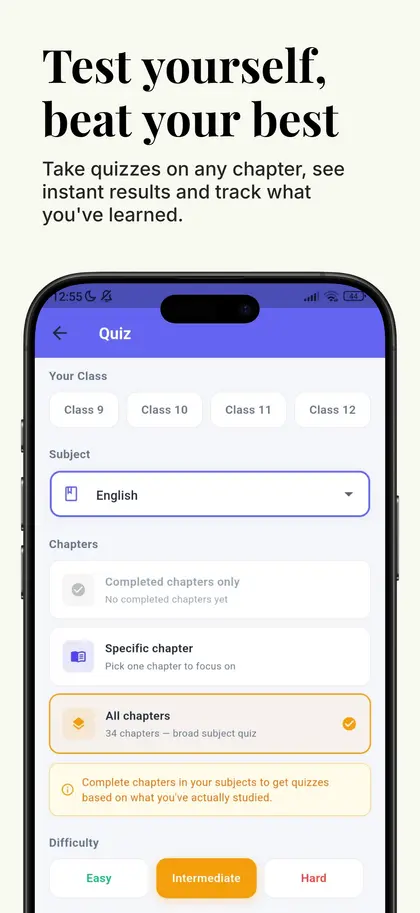

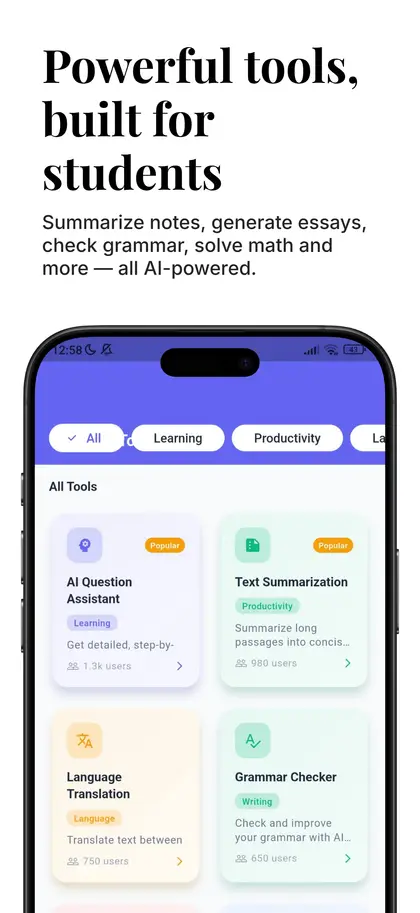

- AI quizzes for this chapterTest yourself with instant feedback and explanations after every answer.
- AI tutor, free, 24/7Stuck on a question? Ask in your own words and get a step-by-step explanation.
- 14 AI tools in one appSummarizer, grammar checker, flashcards, essay help, math solver and more.
- Past questions and notesPast papers and your own notes organized chapter by chapter.