 Sikshya Plus
Chapter at a glance
This chapter provides a comprehensive overview of the Internet and social media, covering fundamental concepts like protocols, web browsers, search engines, and URLs. It also delves into the practical aspects of e-mail, remote login, and the critical importance of online safety, privacy, and responsible social media usage.
- Internet Fundamentals (Protocols, TCP/IP, DNS)
- World Wide Web (WWW), Web Browsers, Search Engines, URLs
- Web Servers and their role
- E-mail communication (components, protocols like SMTP, POP3, IMAP)
- Remote Login
- Social Media (benefits, risks, responsible use)
- Online Security (phishing, MFA, privacy settings)
- Blogs and Digital Platforms
Exam focus: Students should focus on understanding the core concepts of Internet communication (protocols, DNS, TCP/IP), the functions of web browsers and search engines, and the security/privacy implications of social media use.
Key formulas and definitions
- URL Structure: Scheme://Host:Port/Path?Query#Fragment
- HTTP: Hypertext Transfer Protocol (Port 80)
- HTTPS: Hypertext Transfer Protocol Secure (Port 443, encrypted)
- TCP/IP: Transmission Control Protocol / Internet Protocol (reliable data delivery and addressing/routing)
- DNS: Domain Name System (translates domain names to IP addresses)
On this page (4 sections)
Solutions and answers
Complete solutions to all Multiple Choice, Short Answer, Long Answer & Practical Exercises from your Grade 9 Computer Science textbook.
Multiple Choice Questions
23 questions — Internet & Social Media fundamentals
TCP/IP (Transmission Control Protocol / Internet Protocol) is the foundational communication protocol suite of the Internet. It defines how data is packetized, addressed, transmitted, routed, and received. While HTTP, FTP, and SMTP are application-layer protocols running on top of TCP/IP, it is TCP/IP itself that enables end-to-end device communication across the global Internet.
The World Wide Web (WWW), commonly called "the Web," is an information system of interlinked hypertext documents and resources accessed via the Internet using web browsers. Invented by Tim Berners-Lee in 1989, the WWW is not the Internet itself (which is the global network); rather, the Web is a service that runs on top of the Internet.
A search engine (e.g., Google, Bing) uses automated programs called crawlers/spiders to scan and index billions of web pages. When a user enters keywords, the search engine matches them against its index and returns ranked relevant results. Option (a) describes a browser, (c) a web server, and (d) DNS.
A URL (Uniform Resource Locator) is the unique address of a resource on the Internet. It specifies the protocol (e.g., HTTPS), the domain name, and the path to the specific resource. Example: https://www.example.com/page.
A web server is hardware+software that stores website files and processes HTTP/HTTPS requests from browsers. It retrieves requested files (HTML, CSS, images) and delivers them to the browser for display. Popular web servers: Apache, Nginx, IIS.
DNS stands for Domain Name System — the "phonebook of the Internet." It translates human-readable domain names (like www.google.com) into machine-readable IP addresses (like 142.250.190.4) so browsers can locate web resources.
The primary function of DNS is to translate (resolve) domain names into IP addresses. Without DNS, users would need to memorize numeric IP addresses to visit websites.
The Internet is a global network of interconnected computer networks whose main purpose is to facilitate the exchange of data and information worldwide. It enables the Web, e-mail, file transfer, streaming, cloud computing, and much more.
A URL specifies the exact location of a resource on the Internet — the protocol, server, and path to that resource.
A web browser (Chrome, Firefox, Edge, Safari) allows users to access, retrieve, and view information on the WWW. It sends requests to servers, receives files, and renders them as visual web pages.
Remote login (remote access/remote desktop) is the process of connecting to and accessing a remote computer over a network as if sitting in front of it. Tools: TeamViewer, AnyDesk, SSH.
A protocol is a formal set of rules and standards governing how data is formatted, transmitted, received, and acknowledged between devices. Examples: HTTP, HTTPS, FTP, SMTP, TCP/IP, DNS.
HTTP = Hypertext Transfer Protocol. It is the application-layer protocol for transmitting hypermedia documents (HTML) on the WWW. It defines message formatting and transmission between browsers and servers. HTTP operates on port 80 by default.
HTTPS (Hypertext Transfer Protocol Secure) uses SSL/TLS encryption to encrypt all data between browser and server, protecting against eavesdropping and tampering. It operates on port 443. A padlock icon in the address bar indicates HTTPS.
TCP ensures reliable data delivery: it breaks data into packets, numbers them, reassembles them in order at the destination, and retransmits lost packets. IP handles addressing and routing.
FTP (File Transfer Protocol) is designed for transferring files between computers. It supports uploading/downloading and operates on ports 20 (data) and 21 (control).
CC = Carbon Copy (from the carbon paper era). In e-mail, CC sends a copy to additional recipients whose addresses are visible to all. It keeps someone informed without requiring direct action.
BCC (Blind Carbon Copy) sends a copy while hiding recipients' e-mail addresses from others. It ensures privacy and prevents unwanted "Reply All" situations.
Content posted on social media can be permanent and widely shared. Thoughtless posts can lead to cyberbullying, damaged reputations, loss of opportunities, legal consequences, and emotional harm.
Multi-factor authentication (MFA) requires two or more verification forms (e.g., password + OTP). Even if a hacker gets your password, they cannot access your account without the second factor.
A phishing site is a fraudulent website that impersonates a legitimate site to trick users into entering sensitive information (usernames, passwords, credit card numbers). It is a form of social engineering attack.
A blog (weblog) is a digital platform or website where individuals or organizations publish articles, opinions, tutorials, and stories. Platforms: WordPress, Blogger, Medium.
Time limits help reduce screen addiction, improve focus and productivity, and promote better mental health. Excessive use is linked to anxiety, depression, and poor sleep.
Short Answer Questions
7 questions — concise, focused explanations
Main Functions of a Web Browser:
- Fetching web pages: Sends HTTP/HTTPS requests to web servers and downloads HTML, CSS, JavaScript, images, and other resources.
- Rendering content: Parses the received code and displays it as a visually formatted web page with text, images, videos, and interactive elements.
- Navigating the web: Enables navigation via hyperlinks, address bar (URL input), bookmarks, and browsing history.
- Managing sessions: Stores cookies, caches frequently visited pages, remembers passwords, and manages user sessions for a personalized experience.
- Security: Warns users about insecure connections (HTTP vs HTTPS), blocks malicious sites, and supports sandboxing of web content.
Key characteristics of a URL:
- It is unique — every resource on the Internet has its own distinct URL.
- It specifies the protocol to use (e.g.,
http,https,ftp). - It identifies the domain name or IP address of the server hosting the resource.
- It specifies the path to the specific resource on that server.
www.google.com, www.sikshyaplus.com, www.wikipedia.org.How they work together: When you type a domain name in your browser, DNS resolves it to the web server's IP address. The browser then sends an HTTP request to that web server, which processes the request and sends back the web page content.
Key features and uses:
- Technical support: IT professionals can troubleshoot and fix issues on a user's computer without being physically present.
- Remote work: Employees can access their office computers and files from home or while traveling.
- File access: Users can retrieve files stored on a remote computer.
- Collaboration: Multiple users can work on the same system or share screen sessions.
Popular remote login tools: TeamViewer, AnyDesk, Microsoft Remote Desktop, SSH (Secure Shell), Chrome Remote Desktop.
HTTP
- Stands for Hypertext Transfer Protocol
- Data is transmitted in plain text (unencrypted)
- Uses port 80 by default
- URL begins with
http:// - Not secure — vulnerable to eavesdropping, man-in-the-middle attacks
- No SSL/TLS certificate required
- Faster (no encryption overhead)
- Suitable for non-sensitive content
HTTPS
- Stands for Hypertext Transfer Protocol Secure
- Data is encrypted using SSL/TLS
- Uses port 443 by default
- URL begins with
https:// - Secure — protects against eavesdropping and tampering
- Requires an SSL/TLS certificate
- Slightly slower (due to encryption), but negligible on modern hardware
- Essential for banking, e-commerce, login pages, and any sensitive data
https:// before entering any personal or financial information online.
Key features of a blog:
- Regular updates: Content is published periodically, unlike static websites.
- Interactive: Readers can leave comments and engage with the author.
- Easy to create: Platforms like WordPress, Blogger, Medium, Wix allow anyone to start a blog without coding skills.
- Diverse topics: Blogs cover technology, education, travel, food, health, personal diaries, business, and more.
- SEO-friendly: Blogs help individuals and businesses improve their visibility on search engines.
Setting time limits on social media use offers several important benefits:
- Improved productivity: Reduces time wasted on endless scrolling, freeing up hours for studies, hobbies, exercise, and real-world interactions.
- Better mental health: Excessive social media use is linked to anxiety, depression, loneliness, and low self-esteem. Time limits help break the cycle of comparison and FOMO (Fear of Missing Out).
- Improved sleep quality: Avoiding late-night social media use prevents blue light exposure and mental stimulation that disrupt sleep patterns.
- Enhanced focus and concentration: Fewer distractions lead to better academic performance and deeper learning.
- Healthier relationships: More time for face-to-face interactions with family and friends strengthens real-world bonds.
- Digital well-being: Promotes a balanced and intentional use of technology rather than mindless, addictive consumption.
Long Answer Questions
15 questions — comprehensive, descriptive explanations
A URL (Uniform Resource Locator) is the complete address used to locate a specific resource on the Internet. It follows a well-defined structure with multiple components.
Components of a URL explained:
- Scheme / Protocol: Specifies the protocol (communication rules) to use when accessing the resource. Common values:
http,https,ftp,mailto. The scheme is followed by://. - Host / Domain Name: Identifies the server that hosts the resource. This can be a domain name (e.g.,
www.example.com) or an IP address (e.g.,192.168.1.1). Subdomains likewwworblogare prefixes to the main domain. - Port Number: An optional number (preceded by a colon) that identifies a specific service on the server. Default ports: HTTP = 80, HTTPS = 443. If the default port is used, it is usually omitted from the URL.
- Path: Specifies the exact location of the resource on the server, similar to a file path on your computer. Example:
/products/shoes/running.html. - Query String: Optional parameters (preceded by
?) that provide additional data to the server. Multiple parameters are separated by&. Example:?id=10&color=red. - Fragment / Anchor: An optional component (preceded by
#) that points to a specific section within the page. Example:#section2. The fragment is processed by the browser, not sent to the server.
https://www.example.com:443/blog/article?id=5#commentsScheme = https, Domain = www.example.com, Port = 443, Path = /blog/article, Query = id=5, Fragment = comments
How a search engine works (step by step):
- Crawling: The search engine deploys automated programs called web crawlers (also known as spiders or bots) that systematically browse the Internet. These crawlers follow links from one page to another, discovering new and updated pages across billions of websites.
- Indexing: The content of each crawled page is analyzed, processed, and stored in a massive database called the search index. The engine records keywords, page titles, meta descriptions, content structure, images, and other metadata. This index is like an enormous library catalog.
- Processing Queries: When a user types a query (keywords) into the search engine, it compares those keywords against its index to find matching pages.
- Ranking: The search engine uses complex algorithms (e.g., Google's PageRank) to rank the matching results by relevance. Factors include keyword relevance, page quality, website authority, page load speed, mobile-friendliness, user engagement, backlinks, and hundreds of other signals.
- Displaying Results: The ranked results are displayed on the Search Engine Results Page (SERP). Results include organic listings, featured snippets, knowledge panels, images, videos, and paid advertisements.
The Internet and social media have fundamentally transformed how humans communicate, access information, learn, work, and interact. The key transformations include:
🔹 Transformation in Communication:
- Instant messaging: Real-time text, voice, and video communication is now possible across the globe through platforms like WhatsApp, Messenger, Telegram, and Viber — at virtually zero cost.
- Video conferencing: Tools like Zoom, Google Meet, and Microsoft Teams enable face-to-face meetings, virtual classrooms, and telemedicine without physical presence.
- Social networking: Platforms like Facebook, Instagram, Twitter (X), and LinkedIn connect billions of people, enabling community building, professional networking, and social movements.
- E-mail revolution: E-mail replaced traditional postal mail for professional and personal communication, enabling instant delivery of messages, files, and media worldwide.
- Breaking geographical barriers: People can communicate with anyone, anywhere in the world, in real-time — something unimaginable a few decades ago.
🔹 Transformation in Information Access:
- Search engines: Google and Bing give instant access to billions of web pages, research papers, tutorials, and educational content — democratizing knowledge.
- Online education: Platforms like Khan Academy, Coursera, YouTube, and Sikshya Plus provide free or affordable education to students worldwide, regardless of location or economic status.
- Digital libraries and e-books: Vast collections of books, journals, and academic papers are now accessible online through services like Google Scholar, JSTOR, and Project Gutenberg.
- News and media: Real-time news updates from around the world are available 24/7 through news websites, apps, and social media feeds.
- Government services: Citizens can access government services, file taxes, apply for documents, and participate in e-governance online.
🔹 Challenges and Concerns:
- Misinformation and fake news: The ease of publishing content has led to the rapid spread of false information.
- Privacy concerns: Personal data collection by tech companies raises significant privacy issues.
- Digital divide: Not everyone has equal access to the Internet, creating disparities in education and opportunity.
- Cyberbullying and online harassment: Social media has unfortunately become a platform for harmful behavior.
- Addiction and mental health: Excessive use of social media and the Internet can lead to addiction, anxiety, and reduced well-being.
Web Browser
- Definition: An application software used to access and display web pages from the WWW.
- Purpose: To fetch, render, and display web content to the user.
- How it works: Sends HTTP requests to web servers, receives HTML/CSS/JS files, and renders them as visual pages.
- Installation: Must be installed on a device (computer, phone, tablet).
- Examples: Google Chrome, Mozilla Firefox, Microsoft Edge, Safari, Opera.
- Works with: URLs, hyperlinks, bookmarks, and browsing history.
- Needs Internet: Requires an Internet connection to load web pages (though some content may be cached).
Search Engine
- Definition: A software system (web-based service) that searches the Internet for information matching user-entered keywords.
- Purpose: To search, index, and rank web content and provide relevant results.
- How it works: Uses crawlers to index the web; matches user queries against its index; returns ranked results.
- Installation: Accessed through a web browser — no separate installation needed (it's a website/service).
- Examples: Google, Bing, Yahoo, DuckDuckGo, Baidu.
- Works with: Keywords, search queries, and its own database index.
- Needs Internet: Requires an Internet connection to search and retrieve results.
When you type a URL in your browser and press Enter, a fascinating behind-the-scenes process occurs. Here is the step-by-step flow:
- User enters the URL: The user types a URL (e.g.,
https://www.example.com) into the browser's address bar and presses Enter. - DNS Resolution: The browser checks if it already knows the IP address for the domain (via cache). If not, it sends a query to the DNS server to resolve the domain name
www.example.cominto an IP address (e.g.,93.184.216.34). - TCP Connection: The browser establishes a TCP connection with the web server at the resolved IP address on the appropriate port (port 443 for HTTPS, port 80 for HTTP). This involves a three-way handshake (SYN → SYN-ACK → ACK).
- SSL/TLS Handshake (for HTTPS): If HTTPS is used, an additional SSL/TLS handshake occurs to establish an encrypted, secure connection. The server presents its SSL certificate, the browser verifies it, and encryption keys are exchanged.
- HTTP Request sent: The browser sends an HTTP request to the server. This request includes:
- The request method (usually GET for retrieving a page)
- The path of the requested resource (e.g.,
/index.html) - Headers containing information about the browser, accepted formats, cookies, etc.
- Server processes the request: The web server (e.g., Apache or Nginx) receives the request, locates the requested file or generates the content dynamically (using server-side languages like PHP, Python, or Node.js), and prepares an HTTP response.
- HTTP Response sent: The server sends back an HTTP response containing:
- A status code (e.g., 200 OK, 404 Not Found, 500 Server Error)
- Response headers (content type, length, caching directives)
- The response body (HTML content, CSS, JavaScript, images, etc.)
- Browser renders the page: The browser receives the HTML, parses it, fetches additional resources referenced in the HTML (CSS files, JavaScript files, images) by sending further HTTP requests, and then renders everything into a visual, interactive web page on the user's screen.
Why are protocols important?
- Standardization: Protocols provide a common language so that computers, smartphones, servers, routers, and other devices — regardless of manufacturer or operating system — can understand each other.
- Reliability: Protocols define error-checking and retransmission mechanisms (e.g., TCP) to ensure data arrives complete and intact.
- Security: Protocols like HTTPS and SSL/TLS provide encryption and authentication to protect data from unauthorized access.
- Efficiency: Protocols define optimal data packaging, routing, and delivery mechanisms for efficient communication.
- Interoperability: Without protocols, devices from different vendors would be unable to communicate — protocols make the global Internet possible.
Common Internet Protocols:
| Protocol | Full Name | Purpose |
|---|---|---|
| TCP/IP | Transmission Control Protocol / Internet Protocol | Core protocol suite for Internet communication — addressing, routing, reliable delivery |
| HTTP | Hypertext Transfer Protocol | Transferring web pages (HTML) on the WWW (port 80) |
| HTTPS | Hypertext Transfer Protocol Secure | Secure, encrypted web communication (port 443) |
| FTP | File Transfer Protocol | Uploading and downloading files (ports 20, 21) |
| SMTP | Simple Mail Transfer Protocol | Sending e-mails (port 25/587) |
| POP3 | Post Office Protocol v3 | Retrieving e-mails from a mail server (port 110) |
| IMAP | Internet Message Access Protocol | Accessing and managing e-mails on the server (port 143) |
| DNS | Domain Name System | Translating domain names to IP addresses (port 53) |
| DHCP | Dynamic Host Configuration Protocol | Automatically assigning IP addresses to devices on a network |
The Two Main Components:
1. IP (Internet Protocol) — Addressing and Routing:
- Assigns a unique IP address to every device on the network (e.g.,
192.168.1.1for IPv4). - Handles addressing — ensuring each packet has a source and destination address.
- Handles routing — determining the best path for packets to travel across interconnected networks to reach the destination.
- IP is a connectionless protocol — it does not guarantee delivery, order, or error correction. That's TCP's job.
2. TCP (Transmission Control Protocol) — Reliable Delivery:
- Breaks data into packets: Large data is divided into smaller, manageable packets for efficient transmission.
- Numbers packets: Each packet is assigned a sequence number so they can be reassembled in the correct order.
- Three-way handshake: Establishes a reliable connection before data transfer: SYN → SYN-ACK → ACK.
- Error checking: Uses checksums to detect corrupted packets.
- Retransmission: If a packet is lost or damaged, TCP automatically retransmits it.
- Flow control: Adjusts the speed of data transmission to prevent overwhelming the receiver.
How TCP/IP works together:
- Application data (e.g., a web page request) is passed to TCP.
- TCP breaks the data into packets, adds sequence numbers and error-checking information.
- Each packet is passed to IP, which adds source and destination IP addresses.
- IP routes the packets across the network through multiple routers.
- At the destination, TCP reassembles the packets in order, checks for errors, and requests retransmission of any missing packets.
- The complete, error-free data is delivered to the application (e.g., the web server).
E-mail (Electronic Mail) is one of the oldest and most widely used Internet services. A standard e-mail message consists of several components, each serving a specific purpose.
I am writing to inquire about the school's social media safety guidelines...
Regards,
Student Name
Components of an E-mail:
- From (Sender): The e-mail address of the person sending the message. This is automatically filled in based on the logged-in account.
- To (Primary Recipient): The e-mail address(es) of the main recipient(s) who are expected to read and act on the message. Multiple recipients can be separated by commas.
- CC (Carbon Copy): Sends a copy of the e-mail to additional recipients. All recipients (To and CC) can see each other's e-mail addresses. CC is used to keep people informed without requiring them to take action.
- BCC (Blind Carbon Copy): Sends a copy to additional recipients while hiding their addresses from all other recipients. Useful for maintaining privacy when sending to large groups.
- Subject: A brief summary or title describing the content/purpose of the e-mail. A clear subject line helps recipients prioritize and organize their inbox.
- Body: The main content of the e-mail — the actual message. It can include plain text, formatted text (bold, italic, lists), images, and hyperlinks.
- Attachment: Files that can be sent along with the e-mail, such as documents (PDF, DOCX), images, spreadsheets, presentations, or any other file type. Most e-mail services limit attachment size (e.g., 25 MB for Gmail).
- Signature: An optional block of text automatically appended to the end of every e-mail, typically containing the sender's name, title, organization, phone number, and other contact details.
E-mail Protocols:
- SMTP (Simple Mail Transfer Protocol): Used for sending e-mails from the client to the mail server and between mail servers.
- POP3 (Post Office Protocol v3): Used for retrieving e-mails from the server. Downloads e-mails to the local device and typically deletes them from the server.
- IMAP (Internet Message Access Protocol): Used for accessing e-mails on the server. E-mails remain on the server and can be accessed from multiple devices, keeping everything in sync.
www.google.com) into machine-readable IP addresses (e.g., 142.250.190.4). It is often called the "phonebook of the Internet."Why DNS is essential:
- User convenience: Humans find it easy to remember names like
www.google.comrather than numeric IP addresses like142.250.190.4. DNS bridges this gap. - Automatic resolution: Every time you type a URL in your browser, DNS automatically resolves the domain name to the correct IP address behind the scenes.
- Load balancing: DNS can direct users to different servers based on geographic location, improving speed and distributing traffic.
- Redundancy and reliability: DNS uses a distributed, hierarchical system with multiple levels of servers, ensuring the system remains available even if some servers fail.
How DNS resolution works:
- User request: You type
www.example.comin your browser. - Browser cache check: The browser checks if it already has the IP address cached from a previous visit.
- OS cache check: If not cached in the browser, the operating system's DNS cache is checked.
- Recursive resolver: If still not found, the request goes to a recursive DNS resolver (usually provided by your ISP or services like Google DNS
8.8.8.8or Cloudflare1.1.1.1). - Root name server: The resolver queries a root name server, which directs it to the appropriate TLD (Top-Level Domain) server (e.g., the
.comTLD server). - TLD name server: The TLD server directs the resolver to the authoritative name server for
example.com. - Authoritative name server: This server holds the actual DNS records for the domain and returns the IP address (e.g.,
93.184.216.34). - Connection established: The browser receives the IP address, caches it for future use, and establishes a connection with the web server at that address.
E-mail is one of the most widely used communication tools, but it is also a prime target for cyberattacks. Protecting e-mail communication is critical because e-mails often contain sensitive personal information, business data, financial details, and login credentials.
Common E-mail Security Threats:
- Phishing: Fraudulent e-mails that impersonate legitimate organizations (banks, companies, schools) to trick users into revealing passwords, credit card numbers, or personal information.
- Spam: Unsolicited bulk e-mails, often containing advertisements, scams, or malicious links/attachments.
- Malware and ransomware: E-mails containing infected attachments (e.g., disguised as invoices or documents) that install viruses, trojans, or ransomware when opened.
- Man-in-the-middle attacks: Attackers intercept and read e-mails transmitted over unencrypted connections.
- Social engineering: Manipulative e-mails designed to exploit human psychology — urgency, fear, curiosity — to trick users into taking harmful actions.
- Account hijacking: Unauthorized access to an e-mail account through stolen credentials, enabling the attacker to send e-mails as the victim.
Measures to Protect E-mail Communication:
- Use strong, unique passwords: Create complex passwords (12+ characters with uppercase, lowercase, numbers, and symbols) and never reuse passwords across accounts.
- Enable Multi-Factor Authentication (MFA/2FA): Add an extra layer of security by requiring a second verification step (OTP, authenticator app, biometric) in addition to the password.
- Be cautious of suspicious e-mails: Do not open e-mails from unknown senders. Verify the sender's address carefully. Look for signs of phishing: urgency, grammatical errors, suspicious links.
- Do not click unknown links or download suspicious attachments: Hover over links to check the actual URL before clicking. Never download attachments from untrusted sources.
- Use encrypted e-mail services: Services like ProtonMail provide end-to-end encryption. Ensure your e-mail provider supports TLS encryption for data in transit.
- Keep software updated: Regularly update your e-mail client, web browser, and operating system to patch security vulnerabilities.
- Use spam filters: Enable built-in spam and phishing filters in your e-mail service to automatically detect and quarantine suspicious messages.
- Log out from shared devices: Always log out of your e-mail account when using public or shared computers. Avoid accessing e-mail over public Wi-Fi without a VPN.
- Regular account monitoring: Periodically review your account activity, connected devices, and forwarding rules for any unauthorized changes.
Social media platforms collect vast amounts of personal data — your name, location, photos, interests, contacts, browsing habits, and more. Adjusting privacy settings is essential to control who can access your information and how it is used.
Why privacy settings matter:
- Control over personal data: Privacy settings let you decide who can see your profile, posts, photos, friends list, and personal details (phone number, e-mail, birthday).
- Prevent identity theft: Limiting public exposure of personal information reduces the risk of criminals using your data for identity theft or fraud.
- Protect against stalkers and harassers: Restricting who can view your content and contact you helps prevent unwanted attention, stalking, and cyberbullying.
- Control data sharing with third parties: Many platforms share user data with advertisers and third-party apps. Privacy settings allow you to limit or opt out of such data sharing.
- Protect your digital footprint: Everything you post online contributes to your permanent digital footprint. Privacy settings help you manage what information about you is publicly available — information that future employers, colleges, or others may see.
- Prevent data harvesting: Restricting who can see your posts reduces the chance of your data being scraped, collected, and misused by data brokers or malicious actors.
Key privacy settings to adjust:
- Profile visibility: Set your profile to "Private" or "Friends Only" instead of "Public."
- Post audience: Choose who can see your individual posts (Public, Friends, Custom, Only Me).
- Friend/Follower requests: Limit who can send you friend/follow requests. Accept requests only from people you know.
- Search visibility: Control whether your profile appears in search engine results.
- Location sharing: Disable location tagging on posts and turn off location services for social media apps.
- Third-party app permissions: Review and revoke access for third-party apps connected to your social media account.
- Tagging settings: Require approval before others can tag you in photos or posts.
- Data download and deletion: Periodically review and download your data. Delete old posts and information you no longer want online.
- Two-factor authentication: Enable MFA on all social media accounts for added login security.
Browsing the Internet safely requires awareness, good habits, and the right tools. Here are the essential steps to protect yourself:
- Check for HTTPS: Always verify that the website URL begins with
https://and displays a padlock icon 🔒 in the address bar. This ensures the connection is encrypted and secure. Never enter personal or financial information on HTTP-only sites. - Verify the URL carefully: Phishing sites use URLs that closely mimic legitimate sites (e.g.,
g00gle.cominstead ofgoogle.com). Always double-check the spelling and domain before entering any information. - Use a reputable web browser: Modern browsers like Chrome, Firefox, and Edge have built-in security features including Safe Browsing, pop-up blocking, and phishing/malware warnings.
- Keep your browser and OS updated: Software updates include critical security patches that fix vulnerabilities exploited by attackers. Enable automatic updates.
- Install and update antivirus/anti-malware software: Use reliable antivirus software (e.g., Windows Defender, Norton, Bitdefender) and keep it updated to detect and block malicious content.
- Avoid clicking suspicious links: Do not click links in unsolicited e-mails, messages, or pop-up ads. Hover over links to preview the actual URL before clicking.
- Do not download from untrusted sources: Only download software, apps, and files from official websites and verified app stores (Google Play, Apple App Store). Avoid pirated software.
- Use strong, unique passwords: Use a different strong password for each website. Consider using a password manager (e.g., Bitwarden, LastPass) to generate and store passwords securely.
- Enable Multi-Factor Authentication (MFA): Enable 2FA/MFA on all important accounts (e-mail, banking, social media) for an extra layer of protection.
- Be cautious on public Wi-Fi: Public Wi-Fi networks (cafés, airports) are often unsecured. Avoid accessing banking or sensitive accounts on public Wi-Fi. Use a VPN (Virtual Private Network) for encrypted browsing.
- Recognize phishing attempts: Be skeptical of e-mails/messages that create urgency ("Your account will be suspended!"), ask for personal information, or contain unexpected attachments.
- Clear cookies and browsing data regularly: Periodically clear your browser's cache, cookies, and history to remove tracking data and improve privacy.
Video conferencing tools (e.g., Zoom, Google Meet, Microsoft Teams, Webex, Skype) enable real-time audio-visual communication between people in different locations. They have become indispensable for remote work and online education.
Benefits for Remote Work:
- Face-to-face communication: Video calls replicate in-person meetings, enabling visual cues, expressions, and body language that improve understanding and reduce miscommunication compared to e-mail or chat.
- Increased productivity and collaboration: Teams can hold meetings, brainstorming sessions, and project discussions in real-time without commuting. Screen sharing, virtual whiteboards, and collaborative documents enhance teamwork.
- Cost savings: Organizations save significantly on travel expenses, office space, and infrastructure by using video conferencing for meetings and interviews.
- Flexibility and work-life balance: Employees can work from anywhere — home, co-working spaces, or while traveling — reducing commute time and improving work-life balance.
- Global talent access: Companies can hire talent from anywhere in the world and conduct interviews, onboarding, and training remotely.
- Recording and documentation: Meetings can be recorded for future reference, helping team members who couldn't attend catch up and ensuring important decisions are documented.
Benefits for Online Education:
- Access to education from anywhere: Students in remote areas or with mobility challenges can attend classes from home with just an Internet connection and a device.
- Interactive learning: Features like screen sharing, digital whiteboards, polls, breakout rooms, chat, and Q&A sessions make learning interactive and engaging.
- Recorded lectures: Students can rewatch recorded sessions at their own pace for revision and better understanding.
- Guest lectures and experts: Teachers can easily invite guest speakers, industry experts, or educators from other institutions to present to the class via video call.
- Continuity during emergencies: During pandemics (e.g., COVID-19), natural disasters, or other disruptions, video conferencing ensures education continues uninterrupted.
- Inclusivity: Students with disabilities can participate with assistive features like closed captions, screen readers, and adjustable video settings.
- Parent-teacher meetings: Parents can conveniently attend virtual parent-teacher conferences without taking time off work or traveling to school.
Regularly updating your operating system (Windows, macOS, Linux, Android, iOS) and application software (browsers, office suites, antivirus) is one of the most critical and easiest cybersecurity practices.
Why software updates are important:
- Security patches: Software updates frequently include patches for security vulnerabilities — weaknesses that hackers could exploit to gain unauthorized access, install malware, or steal data. When a vulnerability is discovered, developers release a patch. If you don't update, your system remains exposed.
- Protection against known exploits: Cybercriminals actively scan for devices running outdated software with known vulnerabilities. Keeping software updated closes these "open doors" before attackers can exploit them.
- Bug fixes: Updates fix bugs and glitches that may cause crashes, data loss, or unexpected behavior. Stable software is more reliable and secure.
- New security features: Updates often introduce new security features such as improved encryption, better malware detection, enhanced privacy controls, and stronger authentication mechanisms.
- Compatibility: Updated software is compatible with the latest security standards, protocols, and technologies. Outdated software may not support modern encryption or may be incompatible with newer, more secure websites and services.
- Performance improvements: Updates often include performance optimizations that make your device faster and more efficient, in addition to being more secure.
- Compliance: In professional environments, keeping software updated may be a legal or regulatory requirement (e.g., data protection laws).
What to keep updated:
- Operating system: Windows Update, macOS Software Update, Android/iOS system updates.
- Web browsers: Chrome, Firefox, Edge — browsers are a primary attack surface.
- Antivirus/anti-malware: Ensure virus definitions are updated daily for maximum protection.
- Applications: Office suites, PDF readers, media players, and all installed software.
- Firmware: Router firmware, BIOS/UEFI, and other hardware-level software.
Social media has profoundly impacted education, transforming how students learn, collaborate, and interact with educators. When used responsibly, it becomes a powerful educational tool.
Positive Impacts on Education:
- Access to educational content: Platforms like YouTube, Instagram, and Twitter host millions of educational videos, infographics, tutorials, and discussions created by educators, institutions, and subject-matter experts — many of which are free.
- Collaborative learning: Social media enables students to form study groups, share notes, discuss topics, and work on group projects regardless of physical location. Platforms like WhatsApp groups, Discord servers, and Facebook groups facilitate this collaboration.
- Direct access to experts: Students can follow and interact with professors, scientists, authors, industry professionals, and thought leaders on platforms like Twitter (X), LinkedIn, and Instagram.
- Global perspective: Social media exposes students to diverse viewpoints, cultures, and ideas from around the world, broadening their understanding and fostering global citizenship.
- Creative expression: Students can showcase their work — writing, art, science projects, coding — on platforms like blogs, YouTube, and Behance, building a portfolio and receiving feedback.
- Real-time updates: Students stay informed about current events, exam schedules, scholarship opportunities, educational webinars, and competitions through social media.
- Teacher-student communication: Teachers can share resources, assignments, and announcements through social media groups and class pages, creating a supplementary learning channel.
Using Social Media for Collaborative Learning:
- Study groups on messaging apps: Create WhatsApp, Telegram, or Messenger groups for classmates to share notes, ask questions, and discuss topics in real-time.
- Discussion forums: Use platforms like Reddit, Quora, or Discord to participate in academic discussions, ask questions, and get answers from a community of learners.
- Collaborative documents: Use Google Docs, Sheets, and Slides (shared via social media or links) to work on group assignments simultaneously.
- Video conferencing for group study: Schedule regular video study sessions via Zoom or Google Meet for group revision and peer teaching.
- Educational blogs and vlogs: Students can create blogs or YouTube channels to explain concepts to peers — teaching others is one of the most effective ways to learn.
- Social media projects: Teachers can assign projects that require students to create educational content (infographics, videos, presentations) and share them on social media platforms.
- Hashtag-based learning: Follow or create educational hashtags (e.g., #LearnScience, #MathTips) to discover and share curated educational content.
Challenges and How to Address Them:
- Distraction: Social media can be a major source of distraction during study time. Solution: Use focus apps, set study-only hours, and mute notifications.
- Misinformation: Not all content on social media is accurate. Solution: Verify information from credible, authoritative sources. Cross-check with textbooks and official websites.
- Cyberbullying: Negative interactions can harm students' well-being. Solution: Report and block bullies. Educate students about digital citizenship and empathy.
- Privacy concerns: Sharing personal information on educational groups can be risky. Solution: Use privacy settings, avoid sharing personal details, and use dedicated educational platforms when possible.
Practical Exercises
3 hands-on exercises — blog, remote access, and professional e-mail
Step-by-step guide to creating a blog post:
- Choose a free blogging platform: Go to
www.blogger.com(by Google),www.wordpress.com, orwww.medium.com. - Create an account: Sign up using your e-mail address (Google account for Blogger).
- Create a new blog: Give your blog a name (e.g., "My Computer Science Blog") and choose a URL (e.g.,
mycsblog.blogspot.com). - Create a new post: Click "New Post" and enter the title: "How Browsers and Search Engines Work Together"
- Write the content:
How Browsers and Search Engines Work Together
Have you ever wondered how you go from typing a question to seeing a web page on your screen? It's all thanks to two key tools: web browsers and search engines.
A web browser (like Chrome or Firefox) is your window to the Internet. It fetches and displays web pages from servers. A search engine (like Google or Bing) helps you find information by searching its index of billions of web pages.
Here's how they work together:
1️⃣ You open your browser and type a question or keywords in the search bar.
2️⃣ The browser sends your query to a search engine (like Google).
3️⃣ The search engine searches its index and returns a list of relevant websites.
4️⃣ You click on a result, and the browser sends a request to that website's server.
5️⃣ The server sends back the web page content, and your browser renders it beautifully on your screen.
In short, the search engine finds the information, and the browser displays it. They are like two partners working together to give you the best Internet experience!
- Publish the post: Click "Publish" and your blog post will be live.
- Copy and share the URL: Copy the URL of your published blog post (e.g.,
https://mycsblog.blogspot.com/2025/01/how-browsers-and-search-engines.html) and share it with your teacher and classmates.
Real-world scenarios where remote login tools are useful:
- Technical support: An IT helpdesk technician can remotely access a user's computer to troubleshoot software issues, install updates, or fix errors — without visiting in person.
- Helping family/friends: You can remotely access a grandparent's or friend's computer to help them install software, fix settings, or navigate a website — even if they are in a different city.
- Remote work: Employees can access their office desktop computers from home to use specialized software, access files, or complete tasks.
- Server management: System administrators remotely access and manage servers located in data centers around the world.
- Online education: Teachers can remotely access a student's computer to guide them through practical exercises or demonstrate software.
- Collaboration: Team members can share screens and work together on the same project in real-time from different locations.
Steps to remotely access a friend's computer using TeamViewer:
- Both parties install TeamViewer: Both you and your friend download and install the free version of TeamViewer from
www.teamviewer.comon your respective computers. - Your friend opens TeamViewer: Your friend launches TeamViewer on their computer. The application displays a unique Partner ID (9-digit number) and a temporary password.
- Your friend shares the credentials: Your friend tells you (via phone, SMS, or chat) their Partner ID and password.
- You enter the Partner ID: On your computer, open TeamViewer and in the "Partner ID" field, type your friend's 9-digit ID.
- Click "Connect": Click the "Connect" button. When prompted, enter the password your friend provided.
- Remote access established: You will now see your friend's computer screen on your display and can control their mouse and keyboard remotely.
- Help open a secure website: Using the remote control, open your friend's web browser, type the URL of the secure website (e.g.,
https://www.example.com), verify the padlock icon 🔒 in the address bar (confirming HTTPS), and help them navigate the site. - End the session: Once done, close the remote session by clicking "Close" or the X button in TeamViewer. The temporary password changes each session for security.
Steps to compose a professional e-mail:
- Log in to your e-mail account (Gmail, Outlook, etc.).
- Click "Compose" or "New Message."
- Fill in the recipient's e-mail address in the To field.
- Enter the subject line clearly and concisely.
- Write the e-mail body using a professional format: greeting, body, closing, and signature.
- Proofread for spelling and grammar errors.
- Click "Send."
Sample Professional E-mail:
I hope this e-mail finds you well. I am writing to share my understanding of one significant danger of oversharing personal information on social media, as discussed in our recent class on Internet and Social Media.
The Risk: Identity Theft and Social Engineering
When users share excessive personal details on social media — such as their full name, date of birth, home address, phone number, school name, daily routine, vacation plans, and photographs — malicious individuals can collect this information to commit identity theft. For example, many online security questions (such as "What is your mother's maiden name?" or "What was the name of your first pet?") can be answered from information freely available on a person's social media profile.
Furthermore, criminals can use this personal data to create convincing phishing attacks or social engineering scams. A stranger who knows your name, school, and friends can craft a highly convincing fraudulent message or friend request that appears legitimate, tricking you into revealing even more sensitive information such as passwords or bank details.
Additionally, sharing real-time location data (such as "Checking in at the airport for vacation!") signals to potential burglars that your home is empty.
Prevention Measures:
- Set social media profiles to Private.
- Avoid sharing personal identifiers (phone number, address, school name) publicly.
- Disable location tagging on posts.
- Think carefully before accepting friend requests from strangers.
- Regularly review and clean up old posts and photos.
I believe raising awareness about this issue among students is important for everyone's safety in the digital age.
Thank you for your time and for teaching us about these important topics.
With respect,
Ramesh Sharma
Grade 9, Section A
Roll No: 15
Sunrise Secondary School
Phone: 98XXXXXXXX
Frequently asked questions
What is Internet and Social Media about?
This chapter provides a comprehensive overview of the Internet and social media, covering fundamental concepts like protocols, web browsers, search engines, and URLs. It also delves into the practical aspects of e-mail, remote login, and the critical importance of online safety, privacy, and responsible social media usage.
Which topics are covered in Internet and Social Media?
Class 9 Computer Science “Internet and Social Media” covers: Internet Fundamentals (Protocols, TCP/IP, DNS); World Wide Web (WWW), Web Browsers, Search Engines, URLs; Web Servers and their role; E-mail communication (components, protocols like SMTP, POP3, IMAP); Remote Login; Social Media (benefits, risks, responsible use); Online Security (phishing, MFA, privacy settings); Blogs and Digital Platforms.
What should I focus on in Internet and Social Media for the exam?
Students should focus on understanding the core concepts of Internet communication (protocols, DNS, TCP/IP), the functions of web browsers and search engines, and the security/privacy implications of social media use.
What are the key formulas or definitions in Internet and Social Media?
URL Structure: Scheme://Host:Port/Path?Query#Fragment; HTTP: Hypertext Transfer Protocol (Port 80); HTTPS: Hypertext Transfer Protocol Secure (Port 443, encrypted); TCP/IP: Transmission Control Protocol / Internet Protocol (reliable data delivery and addressing/routing); DNS: Domain Name System (translates domain names to IP addresses).
Where can I read the Class 9 Computer Science “Internet and Social Media” solutions?
Right on this page. They are free and you do not need to sign up. For chapter quizzes and the AI tutor, install the Sikshya Plus app.
Study tips
Do not just read it. Practice it.
You have read the solutions for Internet and Social Media. Now test yourself, ask the AI tutor and keep your streak going.
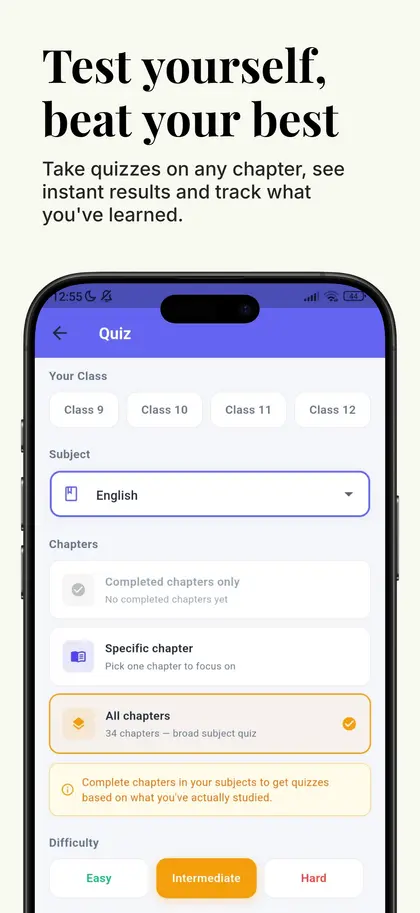
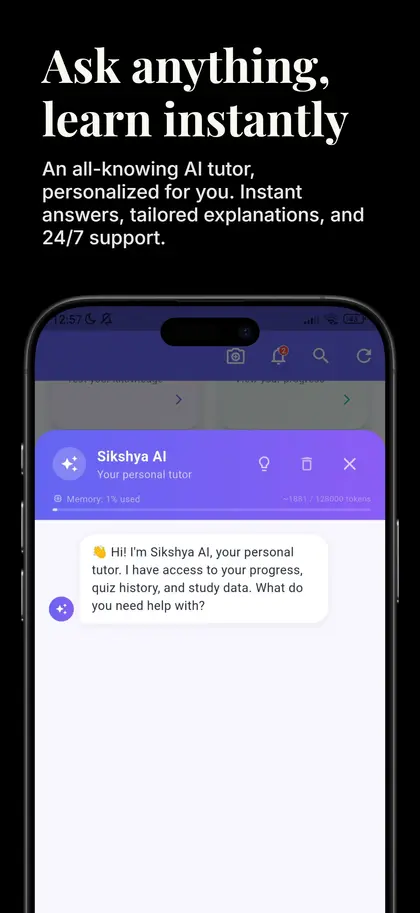
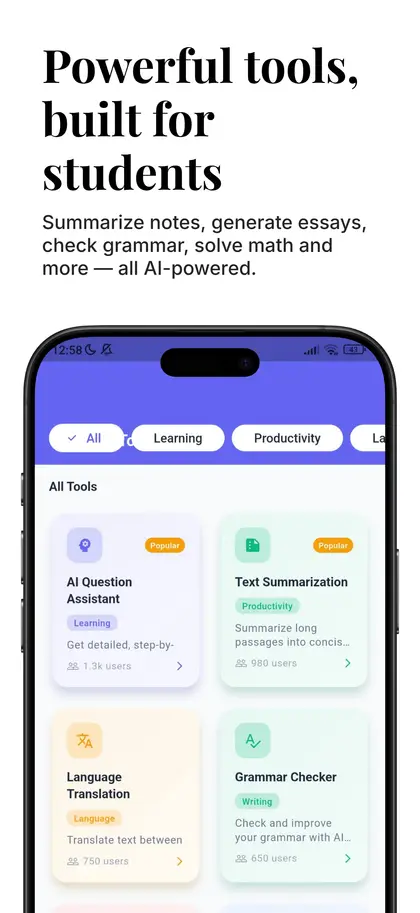

- AI quizzes for this chapterTest yourself with instant feedback and explanations after every answer.
- AI tutor, free, 24/7Stuck on a question? Ask in your own words and get a step-by-step explanation.
- 14 AI tools in one appSummarizer, grammar checker, flashcards, essay help, math solver and more.
- Past questions and notesPast papers and your own notes organized chapter by chapter.