 Sikshya Plus
Chapter at a glance
This chapter provides a comprehensive overview of Web Technology, covering fundamental concepts like HTML, CSS, UI/UX design, and web protocols. It explains the structure and function of HTML tags and attributes, the importance of hyperlinks, and the creation of web pages using various tools and languages. The content also delves into practical aspects like wireframing and the use of specific HTML tags for lists, tables, and images.
- Web Technology Fundamentals (Front-end, Back-end, Protocols, Browsers)
- UI vs. UX Design Principles
- Wireframing and its Purpose
- HTML Structure, Tags, and Attributes
- Hyperlinks and their Importance
- CSS Styling and its Advantages
- HTML Table and List Tags
- Image and Form Handling in HTML
Exam focus: Students should focus on understanding the core concepts of HTML, CSS, and the distinction between UI/UX, as well as practicing the syntax and application of common HTML tags and attributes for creating web page structures.
Key formulas and definitions
- HTML Tag Syntax: <tagname attribute="value">Content</tagname>
- Empty Tag Syntax: <tagname attribute="value">
- CSS Rule Syntax: selector { property: value; }
- Hyperlink Syntax: <a href="URL">Link Text</a>
- Image Syntax: <img src="image.jpg" alt="description">
On this page (20 sections)
- 2Define UI and UX with their Key Principles
- UI — User Interface
- UX — User Experience
- 3Differentiate between UI and UX
- 4What is Wireframe and Wireframe Design?
- 5What is HTML? Write its Importance in the Internet
- 6What is Hyperlink? Write its Importance
- 7What are the HTML Tags and Attributes?
- HTML Tags
- HTML Attributes
- 8Write the General Rules for Writing HTML Tags and Attributes
- 9What is a Container Tag? List Any Four Container Tags
- 10What is an Empty Tag? List Any Four Empty Tags
- 11What is the Use of the TABLE Tag in an HTML Document?
- 12What is the Use of the MARQUEE Tag?
- 13What are the Advantages of Using CSS?
- 14What are the Components of a CSS Style?
- 15Write the Function of the Following HTML Tags
- 16Write HTML Tags for the Following Tasks
- Wireframe Design: Personal Portfolio Webpage
Solutions and answers
Web Technology refers to the collection of tools, languages, protocols, and software frameworks that are used to create, design, develop, deploy, and maintain websites and web applications accessible through the Internet.
Web technology can be broadly divided into the following categories:
- Front-end (Client-side) Technologies: These run in the user's browser and deal with what the user sees and interacts with. Key examples include:
- HTML (HyperText Markup Language) — structures the content of web pages.
- CSS (Cascading Style Sheets) — styles and layouts the content (colors, fonts, spacing).
- JavaScript — adds interactivity and dynamic behaviour (animations, form validation, etc.).
- Back-end (Server-side) Technologies: These run on web servers and handle data processing, databases, and business logic. Examples include PHP, Python, Node.js, Java, and databases like MySQL.
- Web Protocols: Standardised rules that govern data transfer over the Internet, such as:
- HTTP / HTTPS — HyperText Transfer Protocol (Secure) for transferring web pages.
- FTP — File Transfer Protocol for uploading/downloading files to/from servers.
- TCP/IP — Transmission Control Protocol / Internet Protocol for network communication.
- Web Servers: Software that stores, processes, and delivers web pages to users. Common examples: Apache, Nginx, Microsoft IIS.
- Web Browsers: Client applications that interpret and render web content. Examples: Google Chrome, Mozilla Firefox, Microsoft Edge, Safari.
2Define UI and UX with their Key Principles
UI — User Interface
User Interface (UI) is the point of interaction between a user and a digital device or application. It encompasses every visual element a user sees on the screen — buttons, icons, typography, colour schemes, images, menus, layouts, and more.
In simple terms, UI answers: "How does the product look and feel?"
- Consistency: Elements like buttons, fonts, and colours should look and behave the same way across all pages so the user does not get confused.
- Clarity: Every visual element must be self-explanatory. Icons should be recognisable, labels should be clear, and there should be no ambiguity.
- Visual Hierarchy: Important elements (headlines, call-to-action buttons) must be larger, bolder, or more colourful to guide the user's attention naturally.
- Feedback: The interface should respond to user actions — a button changes colour on hover, a form shows a success message on submission, etc.
- Simplicity: Avoid unnecessary visual clutter. Every element on the screen should serve a purpose.
- Aesthetic Integrity: A visually pleasing interface builds trust and makes the user want to stay longer on the application.
UX — User Experience
User Experience (UX) refers to the overall experience a user has while interacting with a product, system, or service. It covers how easy, efficient, enjoyable, and satisfying the entire journey is — from the first visit to task completion.
In simple terms, UX answers: "How does the product work and how does the user feel while using it?"
- User-Centricity: The design process must revolve around the needs, goals, and pain points of real users, not assumptions.
- Usability: The product must be easy to learn and use. A new user should be able to accomplish tasks without a manual.
- Accessibility: The product must be usable by people of all abilities, including those with visual, motor, auditory, or cognitive impairments.
- Information Architecture: Content should be logically organised and easy to navigate. Users should find what they need in the fewest steps.
- Desirability: Beyond being functional, the product should create a positive emotional response — delight, satisfaction, confidence.
- Iterative Improvement: UX design is never "done." Continuous testing, feedback collection, and refinement are essential for long-term success.
3Differentiate between UI and UX
Although UI and UX are closely related and often used together, they refer to distinctly different aspects of design. Below are the key differences presented in a clear, structured manner:
- Definition:
- UI (User Interface) is the visual layer — the look, layout, and interactive elements of a product.
- UX (User Experience) is the overall experience — how the product feels, how easy it is to use, and whether the user achieves their goal efficiently.
- Focus:
- UI focuses on visual design and aesthetics (colours, typography, icons, spacing).
- UX focuses on functionality, flow, and satisfaction (task completion, ease of use, emotional response).
- Nature:
- UI is tangible — you can see it, touch it, and measure it visually.
- UX is intangible — it is the feeling or perception the user carries away from the interaction.
- Scope:
- UI is a subset of UX. Good UI is one component of a good UX.
- UX is the broader concept — it includes UI plus research, testing, information architecture, and strategy.
- Tools Used:
- UI designers use tools like Figma, Adobe XD, Sketch, and Photoshop.
- UX designers use tools like wireframes, prototypes, user personas, journey maps, and usability testing.
- Goal:
- UI aims to make the product beautiful and visually engaging.
- UX aims to make the product useful, usable, and enjoyable.
- Example Analogy:
- Think of a car: the paint colour, dashboard layout, and seat fabric represent UI.
- The comfort of the ride, ease of driving, fuel efficiency, and overall satisfaction represent UX.
- Dependency:
- A product can have beautiful UI but poor UX (looks great, but is hard to use).
- A product can have great UX but poor UI (easy to use, but looks outdated).
- The best products combine excellent UI with excellent UX.
4What is Wireframe and Wireframe Design?
Wireframe is a low-fidelity, simplified visual representation (blueprint or skeleton) of a web page or application interface. It outlines the basic structure, layout, and placement of elements — such as headers, navigation bars, content blocks, images, buttons, and forms — without using actual colours, images, or detailed styling.
Wireframe Design is the process of creating these blueprints. It is one of the earliest and most crucial steps in the UI/UX design workflow.
Purpose of Wireframe Design:
- Visualise the Layout: It helps designers, developers, and clients see the arrangement of elements on a page before investing time in full design or code.
- Plan Content Hierarchy: Wireframes show which content is primary (large area, top of page) versus secondary (smaller, lower).
- Define Navigation Flow: They map out how users will move from one section or page to another.
- Facilitate Communication: Wireframes serve as a common language between designers, developers, project managers, and clients.
- Save Time and Money: Identifying problems in the layout stage is far cheaper than fixing them after development.
Characteristics of Wireframes:
- They use simple shapes — rectangles, lines, crosses, and placeholder text ("Lorem ipsum").
- They are usually black-and-white or grayscale (no colour, no real images).
- They focus on structure and functionality, not visual aesthetics.
- They can be drawn on paper (hand-drawn) or created digitally using tools like Figma, Balsamiq, Adobe XD, or Sketch.
Types of Wireframes:
- Low-Fidelity Wireframes: Quick, rough sketches (pen-and-paper). Used in early brainstorming.
- Mid-Fidelity Wireframes: More detailed digital layouts with approximate sizing and spacing but still no colour or images.
- High-Fidelity Wireframes: Detailed, interactive prototypes that closely resemble the final product (may include some colour, real text, and clickable elements).
5What is HTML? Write its Importance in the Internet
HTML stands for HyperText Markup Language. It is the standard markup language used to create and structure the content of web pages. HTML is not a programming language; it is a markup language that uses a system of tags and attributes to define the structure and layout of content on the World Wide Web.
Hyper — Beyond, meaning the ability to link to other documents (hyperlink).
Text — The content written in plain text format.
Markup — The method of annotating text with tags to define its structure.
Language — A set of rules and syntax understood by web browsers.
History: HTML was created by Tim Berners-Lee in 1991. The latest standard version is HTML5, which introduced semantic elements, audio/video support, canvas, and many APIs.
Importance of HTML in the Internet:
- Foundation of Every Web Page: Every single website on the Internet — from Google to Facebook to your school portal — is built on HTML. It is the skeleton upon which all web content rests.
- Universal Standard: HTML is supported by every web browser (Chrome, Firefox, Safari, Edge) on every operating system (Windows, macOS, Linux, Android, iOS). It is a W3C (World Wide Web Consortium) standard.
- Content Structuring: HTML provides semantic tags like <header>, <nav>, <main>, <section>, <footer> that give meaning to content, helping browsers, search engines, and assistive technologies understand it.
- Hyperlinking: HTML makes it possible to link documents together via hyperlinks, which is the fundamental concept behind the "web" of the World Wide Web.
- Platform for Other Technologies: CSS (styling) and JavaScript (interactivity) are embedded within HTML documents. Without HTML, these technologies have no structure to act upon.
- Search Engine Optimisation (SEO): Search engines like Google read the HTML structure of web pages to index and rank them. Proper HTML usage (headings, meta tags, alt text) improves a website's visibility.
- Accessibility: Well-structured HTML ensures that people using screen readers or other assistive technologies can access and navigate web content effectively.
- Free and Open: HTML is free to use, requires no special software (just a text editor and a browser), and has a low learning curve, making it accessible to everyone.
6What is Hyperlink? Write its Importance
A hyperlink (often simply called a link) is a clickable element in a web page that navigates the user to another web page, a different section of the same page, a file, an email address, or any other resource on the Internet.
In HTML, a hyperlink is created using the anchor tag <a>. The href attribute specifies the destination URL.
<a href="https://www.example.com">Click Here</a>
Types of Hyperlinks:
- Internal Link: Navigates to another page within the same website (e.g., href="about.html").
- External Link: Navigates to a page on a different website (e.g., href="https://www.google.com").
- Anchor Link: Navigates to a specific section within the same page using an ID (e.g., href="#section2").
- Email Link: Opens the user's email client to send an email (e.g., href="mailto:info@example.com").
- Download Link: Allows the user to download a file (e.g., href="file.pdf" download).
Importance of Hyperlinks:
- Foundation of the Web: The entire World Wide Web is built on the concept of hyperlinks. They connect billions of documents into an interconnected "web" of information.
- Navigation: Hyperlinks allow users to navigate between pages, websites, and sections effortlessly, making the web browsable.
- Information Access: They enable users to access related information, references, and resources with a single click.
- SEO (Search Engine Optimisation): Search engines use links to discover new pages, understand relationships between pages, and determine the importance and ranking of a website.
- User Engagement: Well-placed hyperlinks guide users through a website, increasing engagement and reducing bounce rates.
- Resource Sharing: Hyperlinks make it easy to share documents, videos, images, and other files with anyone across the globe.
7What are the HTML Tags and Attributes?
HTML Tags
An HTML tag is a special keyword enclosed in angle brackets (< >) that tells the web browser how to display or structure content. Tags are the building blocks of HTML.
- Most tags come in pairs: an opening tag and a closing tag. The closing tag has a forward slash (/) before the tag name.
- Example: <p> This is a paragraph. </p>
- Some tags are self-closing (empty tags) and do not need a closing tag, e.g., <br>, <hr>, <img>.
- Tags can be nested (placed inside one another) to create complex structures.
<html>, <head>, <body>, <h1>–<h6>, <p>, <a>, <img>, <table>, <div>, <form>, <ul>, <ol>, <li>, <b>, <i>, <br>
HTML Attributes
An HTML attribute provides additional information about an HTML element. Attributes are always placed inside the opening tag and are written as name="value" pairs.
- Attributes modify the behaviour or provide extra data about the element.
- They always appear in the opening tag, not the closing tag.
- Attribute values are enclosed in double quotes (" ") or single quotes (' ').
- Multiple attributes can be used in a single tag, separated by spaces.
<a href="https://www.google.com" target="_blank">Visit Google</a>Here, href and target are attributes. href specifies the URL and target="_blank" opens the link in a new tab.
Common HTML Attributes:
- href — Specifies the URL for links (<a>).
- src — Specifies the source file for images (<img>).
- alt — Provides alternative text for images.
- class — Assigns a CSS class to the element.
- id — Assigns a unique identifier to the element.
- style — Applies inline CSS styles.
- width / height — Sets dimensions for images, tables, etc.
- border — Sets border width for tables and images.
8Write the General Rules for Writing HTML Tags and Attributes
When writing HTML code, the following rules and best practices must be followed to ensure valid, readable, and error-free markup:
- Rule 1 — Use Angle Brackets: All HTML tags must be enclosed within angle brackets < >. For example, <p> for a paragraph.
- Rule 2 — Opening and Closing Tags: Most tags require both an opening tag (<p>) and a closing tag (</p>). The closing tag has a forward slash / before the tag name.
- Rule 3 — Proper Nesting: Tags must be nested correctly. The tag that is opened last must be closed first (LIFO — Last In, First Out).
✅ Correct: <b><i>Bold & Italic</i></b>
❌ Incorrect: <b><i>Bold & Italic</b></i> - Rule 4 — Attributes in Opening Tags Only: Attributes are written only in the opening tag, never in the closing tag. E.g., <img src="photo.jpg">.
- Rule 5 — Attribute Values in Quotes: Attribute values must be enclosed in double quotes (" ") or single quotes (' '). E.g., href="https://example.com".
- Rule 6 — Case Sensitivity: Although HTML tags are case-insensitive (both <P> and <p> work), it is a best practice to write all tags and attributes in lowercase for consistency and readability.
- Rule 7 — Proper Indentation: Use consistent indentation (2 or 4 spaces) to make the HTML code readable and maintainable, especially for nested elements.
- Rule 8 — Self-Closing Tags: Empty tags like <br>, <hr>, and <img> do not need a closing tag. In XHTML, they are written as <br /> with a self-closing slash.
- Rule 9 — Required Document Structure: Every HTML document should begin with <!DOCTYPE html>, followed by <html>, containing <head> and <body> sections.
- Rule 10 — Unique IDs: The id attribute value must be unique within a page. No two elements should share the same id. The class attribute, however, can be shared by multiple elements.
9What is a Container Tag? List Any Four Container Tags
A container tag (also called a paired tag or enclosing tag) is an HTML tag that has both an opening tag and a closing tag. Content (text, other tags, or media) is placed between the opening and closing tags. The container tag "encloses" or "wraps" its content.
The closing tag is identical to the opening tag but has a forward slash / before the tag name.
Four Examples of Container Tags:
- <p> ... </p> — Defines a paragraph. Text placed between these tags is displayed as a paragraph.
- <h1> ... </h1> — Defines a heading (level 1, the largest). There are six levels: <h1> to <h6>.
- <table> ... </table> — Defines a table. Rows and cells are nested inside it.
- <div> ... </div> — Defines a division or section in the document. It is a block-level container used for layout and grouping.
10What is an Empty Tag? List Any Four Empty Tags
An empty tag (also called a void tag, self-closing tag, or standalone tag) is an HTML tag that does not have a closing tag and does not wrap any content. It stands alone and performs its function with a single tag, often using attributes for configuration.
Four Examples of Empty Tags:
- <br> — Inserts a line break. Moves the content after it to a new line.
- <hr> — Inserts a horizontal rule (a thematic break line) across the page.
- <img> — Inserts an image. Uses src and alt attributes. E.g., <img src="photo.jpg" alt="My Photo">.
- <input> — Creates an input field in a form (text box, checkbox, radio button, etc.).
11What is the Use of the TABLE Tag in an HTML Document?
The <table> tag in HTML is used to create tables — structured arrangements of data organised into rows and columns. Tables are used to display tabular data in a clear, organised, and readable format on a web page.
Related Table Tags:
- <table> — The main container that defines the entire table.
- <tr> — Table Row. Defines a horizontal row in the table.
- <td> — Table Data. Defines a standard data cell within a row.
- <th> — Table Header. Defines a header cell (bold and centred by default).
- <caption> — Provides a title/caption for the table.
- <thead>, <tbody>, <tfoot> — Group the header, body, and footer rows respectively.
Uses of the TABLE Tag:
- Displaying Data: Presenting information such as marksheets, price lists, schedules, timetables, and comparison charts in rows and columns.
- Organising Information: Structuring large amounts of data so it is easy to read and compare.
- Form Layouts: In older HTML designs, tables were used to create complex form layouts (though modern CSS is preferred).
- Page Layout (Legacy): Before CSS Grid and Flexbox, tables were used for page layout. This is now considered outdated and not recommended.
12What is the Use of the MARQUEE Tag?
The <marquee> tag is an HTML element (non-standard, originally introduced by Microsoft Internet Explorer) used to create scrolling or moving text and images horizontally or vertically across a web page. It creates a scrolling effect automatically without any JavaScript or CSS animation.
Syntax:
<marquee direction="right" behaviour="scroll">Scrolling Text Here</marquee>
Uses of the MARQUEE Tag:
- Scrolling Announcements: Displaying news tickers, important notices, or announcements that continuously scroll across the page to attract attention.
- Advertisements: Moving promotional banners or text ads.
- Decorative Text Effects: Adding visual dynamism to a web page with moving text.
- Highlighting Important Information: Drawing the user's eye to critical information by making it move.
Key Attributes of MARQUEE:
- direction — Sets the direction of scrolling: left (default), right, up, down.
- behaviour — Sets the type of scrolling: scroll (default, continuous), slide (stops at the end), alternate (bounces back and forth).
- scrollamount — Sets the speed of scrolling (higher value = faster).
- scrolldelay — Sets the delay between each jump in milliseconds.
- loop — Sets the number of times the marquee should loop (default is infinite).
- bgcolor — Sets the background colour of the marquee.
13What are the Advantages of Using CSS?
CSS (Cascading Style Sheets) is a stylesheet language used to describe the presentation and visual formatting of HTML documents. It separates the content (HTML) from the design (CSS), providing numerous advantages:
- Separation of Content and Presentation: CSS allows you to keep HTML for structure/content and CSS for styling separately. This makes code cleaner, more organised, and easier to maintain.
- Consistency Across Pages: A single CSS file can be linked to multiple HTML pages. Changing the stylesheet automatically updates the look of all linked pages, ensuring a consistent design across the entire website.
- Faster Page Loading: Since CSS files are cached by the browser after the first load, subsequent pages load faster as they reuse the same stylesheet. This reduces bandwidth usage.
- Easy Maintenance: When you need to change a colour, font, or layout, you modify just one CSS file instead of editing every individual HTML page. This saves enormous time and effort.
- Responsive Design: CSS enables websites to adapt to different screen sizes and devices (desktop, tablet, mobile) using media queries, flexible grids, and relative units.
- Greater Design Control: CSS provides precise control over layout, typography, colours, spacing, borders, backgrounds, animations, transitions, and much more — far beyond what HTML alone can achieve.
- Improved SEO: Cleaner HTML code (free of inline styling) helps search engines better understand and index the content of a web page.
- Accessibility: CSS allows designers to create visually appealing pages while keeping the HTML semantically correct, which benefits screen readers and assistive technologies.
- Reduced Code Redundancy: Without CSS, styling must be repeated in every HTML element using inline styles or deprecated attributes. CSS eliminates this repetition.
- Multiple Integration Methods: CSS can be applied in three ways — inline (within elements), internal/embedded (in the <head>), and external (linked .css files) — giving developers flexibility.
14What are the Components of a CSS Style?
A CSS style rule (also called a rule set) consists of the following components:
selector {
  property: value;
  property: value;
}
- 1. Selector:
The selector determines which HTML element(s) the style rule will apply to. It "selects" the target element(s) on the page.
- Element/Type Selector: Selects elements by tag name — e.g., p { ... } selects all <p> tags.
- Class Selector: Selects elements with a specific class — e.g., .highlight { ... } selects all elements with class="highlight".
- ID Selector: Selects a unique element by its ID — e.g., #header { ... } selects the element with id="header".
- Universal Selector: Selects all elements — * { ... }.
- Attribute Selector: Selects elements based on an attribute — e.g., input[type="text"] { ... }.
- 2. Declaration Block:
The declaration block is enclosed in curly braces { } and contains one or more declarations (property-value pairs). It defines what styles should be applied to the selected element.
- 3. Property:
The property is the visual characteristic you want to change. Examples include: color, font-size, background-color, margin, padding, border, text-align, width, height, etc.
- 4. Value:
The value is the setting assigned to the property. Each property accepts specific types of values. For example:
- color: red; — sets text colour to red.
- font-size: 16px; — sets font size to 16 pixels.
- text-align: center; — centres the text.
- 5. Declaration (Property : Value Pair):
A declaration is the complete property-value pair, separated by a colon (:) and terminated by a semicolon (;). Multiple declarations can exist within a single declaration block.
p {
  color: blue;
  font-size: 18px;
  text-align: center;
}
Breakdown:
• Selector: p
• Declarations:
• color: blue; (property = color, value = blue)
• font-size: 18px; (property = font-size, value = 18px)
• text-align: center; (property = text-align, value = center)
15Write the Function of the Following HTML Tags
- a. <UL> — Unordered List:
Creates a bulleted list of items. Each list item is defined using <li>. By default, items are displayed with bullet points (•). The bullet style can be changed using the type attribute (disc, circle, square).
Example:<ul><li>Apple</li><li>Banana</li></ul> - b. <Table> — Table:
Creates a table with rows (<tr>) and columns (<td> / <th>). Used for displaying structured, tabular data such as timetables, marksheets, and data grids.
Example:<table border="1"><tr><td>Cell</td></tr></table> - c. <A HRef> — Anchor / Hyperlink:
Creates a clickable hyperlink. The href attribute specifies the destination URL. When clicked, the browser navigates to the linked page or resource. Additional attributes like target="_blank" can open the link in a new tab.
Example:<a href="https://www.google.com">Visit Google</a> - d. <MARQUEE> — Scrolling Text:
Creates scrolling/moving text or content across the web page. Text moves horizontally (left or right) or vertically (up or down). It is a deprecated tag but is still functional in most browsers.
Example:<marquee direction="right">Welcome!</marquee> - e. <IMG> — Image:
Inserts an image into the web page. It is an empty/self-closing tag. The src attribute specifies the image file path/URL, and the alt attribute provides alternative text if the image cannot be displayed.
Example:<img src="photo.jpg" alt="My Photo" width="300"> - f. <sub> — Subscript:
Renders text as subscript — smaller text positioned below the normal baseline. Commonly used in chemical formulas (e.g., H₂O) and mathematical expressions.
Example:H<sub>2</sub>O→ displays as H2O - g. <FONT> — Font:
(Deprecated in HTML5) Was used to specify the font size, face (typeface), and colour of text. Modern HTML uses CSS instead. Attributes included size, face, and color.
Example:<font face="Arial" size="4" color="red">Red Text</font> - h. <FORM> — Form:
Creates an HTML form for collecting user input. Form elements like <input>, <textarea>, <select>, <button> are placed inside the form. The action attribute specifies where to send the data, and method specifies the HTTP method (GET or POST).
Example:<form action="/submit" method="post"><input type="text"></form> - i. <HR> — Horizontal Rule:
Inserts a horizontal line (thematic break) across the page. It is an empty/self-closing tag used to visually separate sections of content.
Example:<p>Section 1</p><hr><p>Section 2</p> - j. <OL> — Ordered List:
Creates a numbered list of items. Each list item is defined using <li>. By default, items are numbered (1, 2, 3...). The numbering style can be changed using the type attribute (1, A, a, I, i).
Example:<ol><li>First</li><li>Second</li></ol>
16Write HTML Tags for the Following Tasks
- a. To make text bold:
<b>Bold Text</b> or <strong>Bold Text</strong>
<b> is purely visual (bold), while <strong> adds semantic importance. - b. To insert a picture in the webpage:
<img src="image.jpg" alt="Description" width="400">
src = path to the image, alt = alternative text, width/height = size in pixels. - c. To create an ordered list:
<ol>
<li>Item 1</li>
<li>Item 2</li>
<li>Item 3</li>
</ol> - d. To create an unordered list:
<ul>
<li>Item 1</li>
<li>Item 2</li>
<li>Item 3</li>
</ul> - e. To make text subscript:
<sub>subscript text</sub>
Example:H<sub>2</sub>O→ H2O - f. To create a table:
<table border="1">
<tr>
<th>Header 1</th>
<th>Header 2</th>
</tr>
<tr>
<td>Data 1</td>
<td>Data 2</td>
</tr>
</table> - g. To make a line break:
<br> or <br />
Example:First line<br>Second line - h. To align text in the centre:
<center>Centred Text</center> (deprecated)
Modern CSS approach:<p style="text-align: center;">Centred Text</p> - i. To change font size to 10, face to Arial, and colour to red:
<font size="10" face="Arial" color="red">Styled Text</font>
Modern CSS approach:<p style="font-size: 10px; font-family: Arial; color: red;">Styled Text</p>
Wireframe Design: Personal Portfolio Webpage
Below is a low-fidelity wireframe for a personal portfolio webpage. It includes all required sections: Header with navigation, About Me, Projects, and Contact. The layout structure (columns, divs, and section boundaries) is clearly indicated.
- The layout uses a single-column structure with clearly separated sections.
- The header spans the full width and contains the name and navigation links.
- Each section is represented as a distinct div/block with a label.
- Placeholder text and image areas are shown as grey boxes.
My Portfolio
A short tagline or introduction goes here.
(Profile Photo)
200 × 200 px
"Hi, I am a Grade 9 student passionate about technology and web development. I enjoy building creative projects and learning new things every day."
Title: "Calculator App"
Description: "A simple calculator built with HTML, CSS, and JS."
Title: "Quiz Game"
Description: "An interactive quiz with score tracking."
Title: "Weather App"
Description: "Displays weather data using an API."
- Header (div) — Full-width, contains logo/name
- Navigation (div) — Horizontal bar with 4 links (Home, About, Projects, Contact)
- Home/Hero Section (div) — Full-width welcome area
- About Me Section (div) — Two-column layout (image | bio text)
- Projects Section (div) — Three-column layout (3 project cards)
- Contact Section (div) — Single column with form fields (name, email, message, submit button)
- Footer (div) — Full-width, copyright and social links
Frequently asked questions
What is Web Technology about?
This chapter provides a comprehensive overview of Web Technology, covering fundamental concepts like HTML, CSS, UI/UX design, and web protocols. It explains the structure and function of HTML tags and attributes, the importance of hyperlinks, and the creation of web pages using various tools and languages. The content also delves into practical aspects like wireframing and the use of specific HTML tags for lists, tables, and images.
Which topics are covered in Web Technology?
Class 9 Computer Science “Web Technology” covers: Web Technology Fundamentals (Front-end, Back-end, Protocols, Browsers); UI vs. UX Design Principles; Wireframing and its Purpose; HTML Structure, Tags, and Attributes; Hyperlinks and their Importance; CSS Styling and its Advantages; HTML Table and List Tags; Image and Form Handling in HTML.
What should I focus on in Web Technology for the exam?
Students should focus on understanding the core concepts of HTML, CSS, and the distinction between UI/UX, as well as practicing the syntax and application of common HTML tags and attributes for creating web page structures.
What are the key formulas or definitions in Web Technology?
HTML Tag Syntax: <tagname attribute="value">Content</tagname>; Empty Tag Syntax: <tagname attribute="value">; CSS Rule Syntax: selector { property: value; }; Hyperlink Syntax: <a href="URL">Link Text</a>; Image Syntax: <img src="image.jpg" alt="description">.
Where can I read the Class 9 Computer Science “Web Technology” solutions?
Right on this page. They are free and you do not need to sign up. For chapter quizzes and the AI tutor, install the Sikshya Plus app.
Study tips
Do not just read it. Practice it.
You have read the solutions for Web Technology. Now test yourself, ask the AI tutor and keep your streak going.
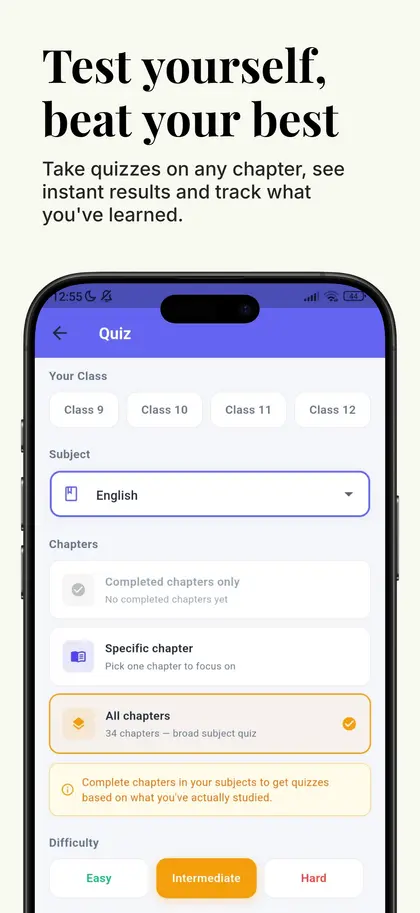
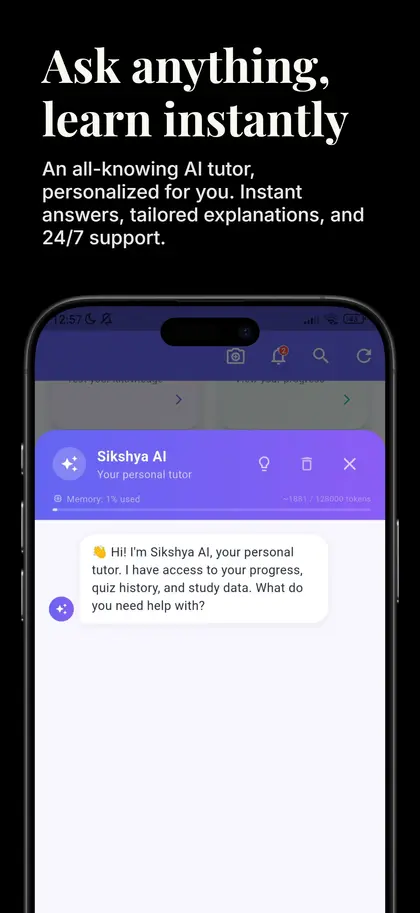
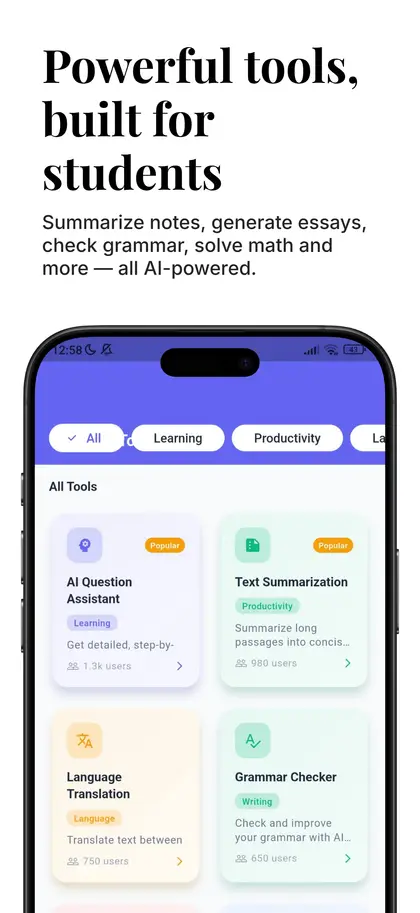
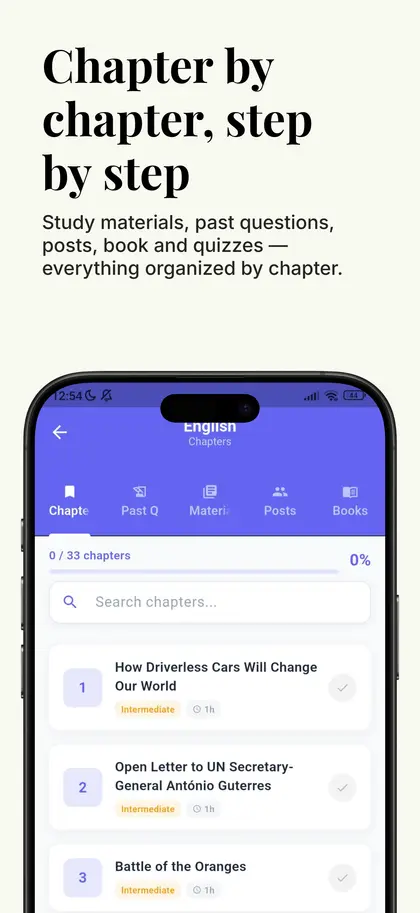
- AI quizzes for this chapterTest yourself with instant feedback and explanations after every answer.
- AI tutor, free, 24/7Stuck on a question? Ask in your own words and get a step-by-step explanation.
- 14 AI tools in one appSummarizer, grammar checker, flashcards, essay help, math solver and more.
- Past questions and notesPast papers and your own notes organized chapter by chapter.